
Using AutoPhoneAgent
Everything your Agent can do, and where to find it. New here? Start with Set up, then read The dashboard. Questions this page does not answer: FAQ or [email protected].
- 1. Set up
- 2. The dashboard and the dock
- 3. Calls it answers
- 4. Calls it places for you
- 5. Reminders
- 6. Meeting notes (Listen & note)
- 7. Names and remembered voices
- 8. AI identities, voices and skills
- 9. Contacts
- 10. Your account
- 11. Docks and phones
- 12. Claude, ChatGPT and other AI apps
- 13. Try it
- 14. Privacy and your data
- 15. When something is not right
1. Set up
You need the dock, a USB-C power adapter, 2.4 GHz WiFi and a phone that pairs with a Bluetooth headset (iPhone or Android, on a US carrier). It takes about five minutes and there is no app to install.
- Power. Plug the dock in. The screen shows WiFi setup and the dock's Bluetooth name (it starts with AutoPhone-).
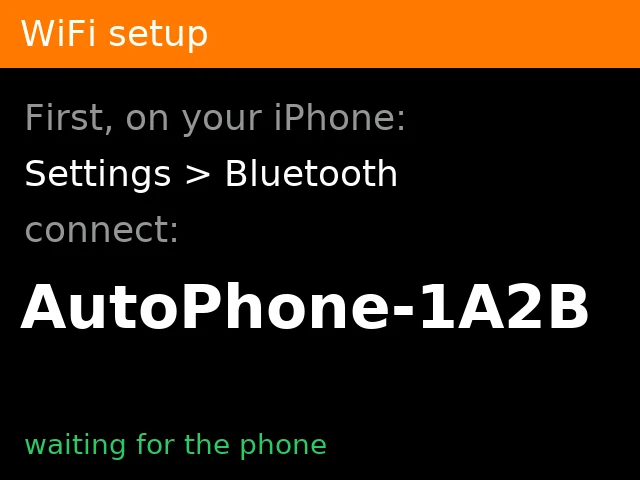
1. The dock's Bluetooth name - Pair. On your phone open Settings → Bluetooth and connect to that name, as you would a headset. If the phone asks to share contacts or notifications, allow it. The top bar turns green: Paired.
- Connect to WiFi. The screen now shows a code. Scan it with the phone's camera. On the page that opens, enter your WiFi name and password (2.4 GHz), tap Send and allow the microphone when asked (the page talks to the dock over the Bluetooth link; your password never goes to the internet). Keep the page open until the screen says WiFi connected.
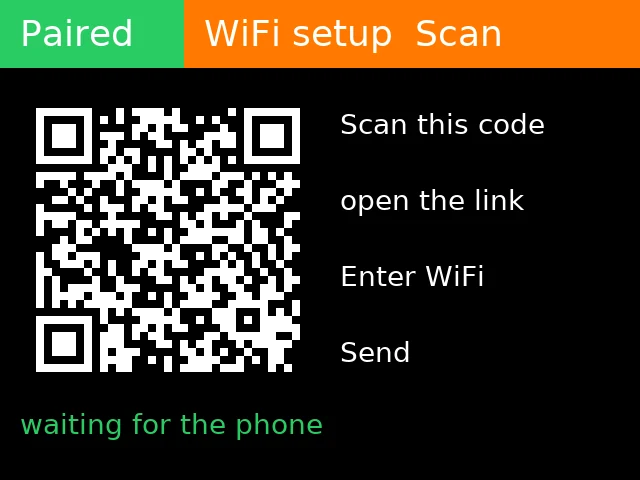
2. Scan this code 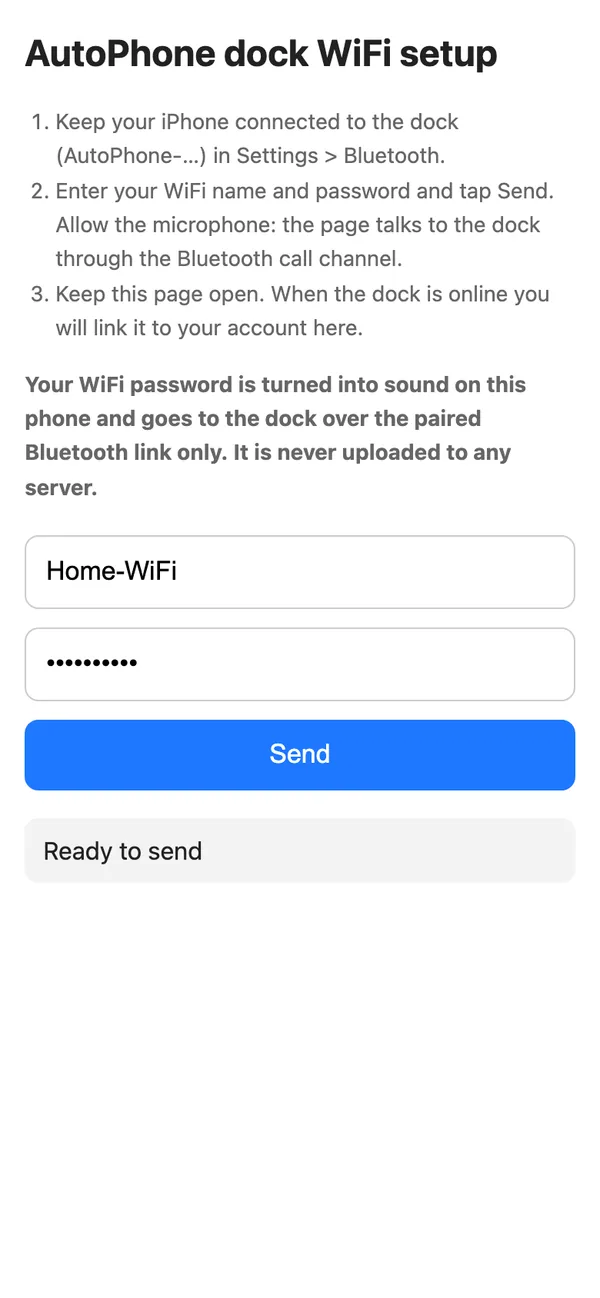
3. Send the dock your WiFi 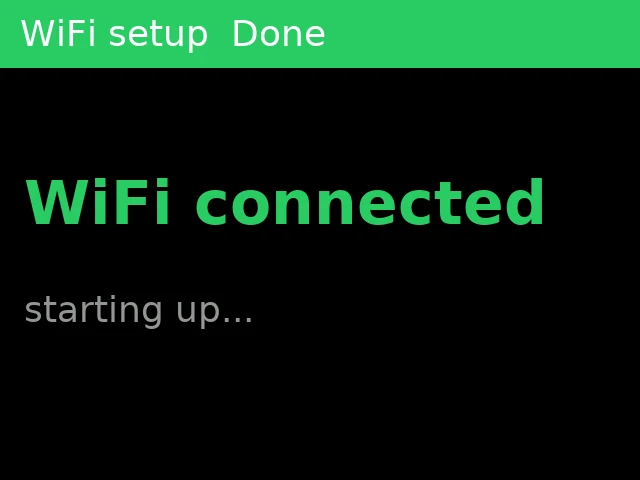
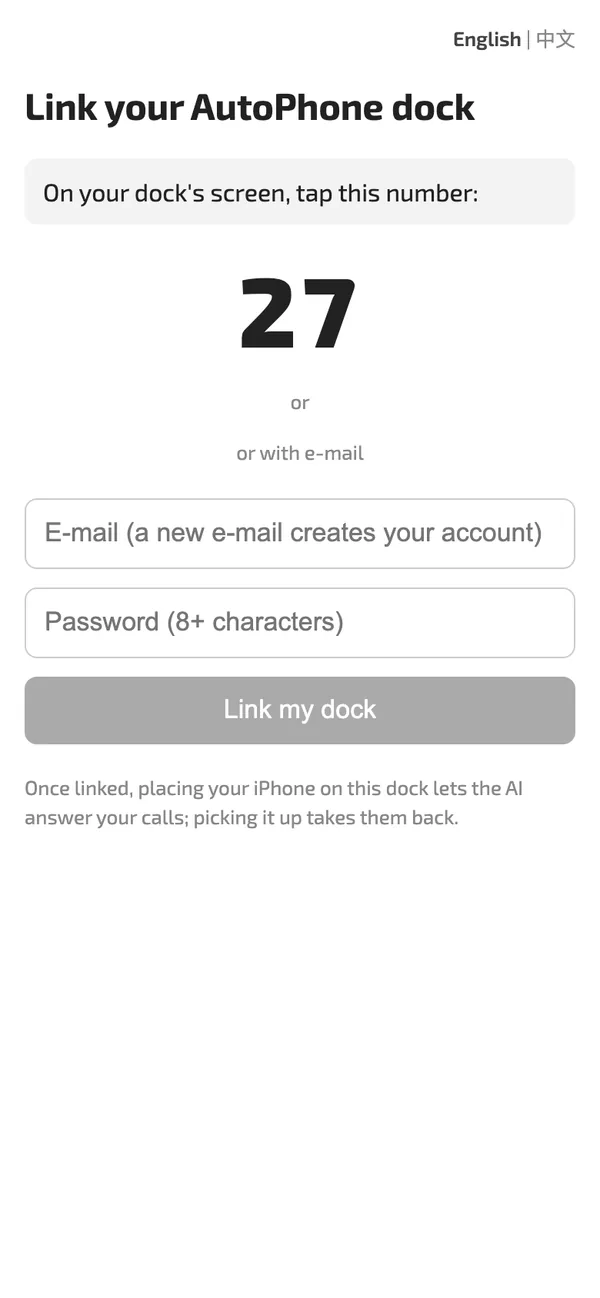
4. WiFi connected - Sign in. The screen shows a second code. Scan it (or follow the WiFi page) and link the dock to your account: with your phone number (how), Google or e-mail.
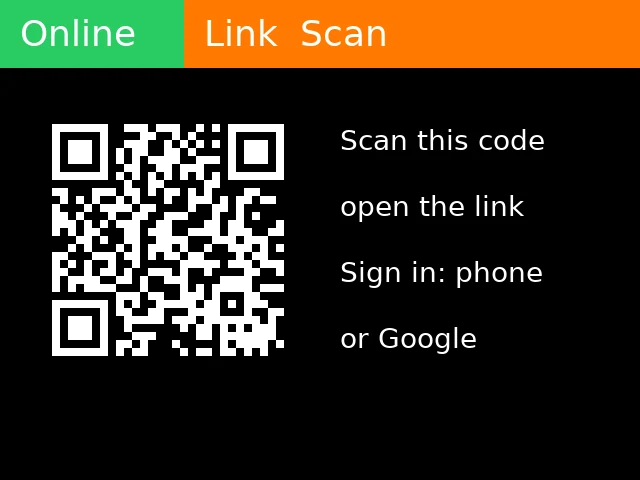
5. Scan to link the dock 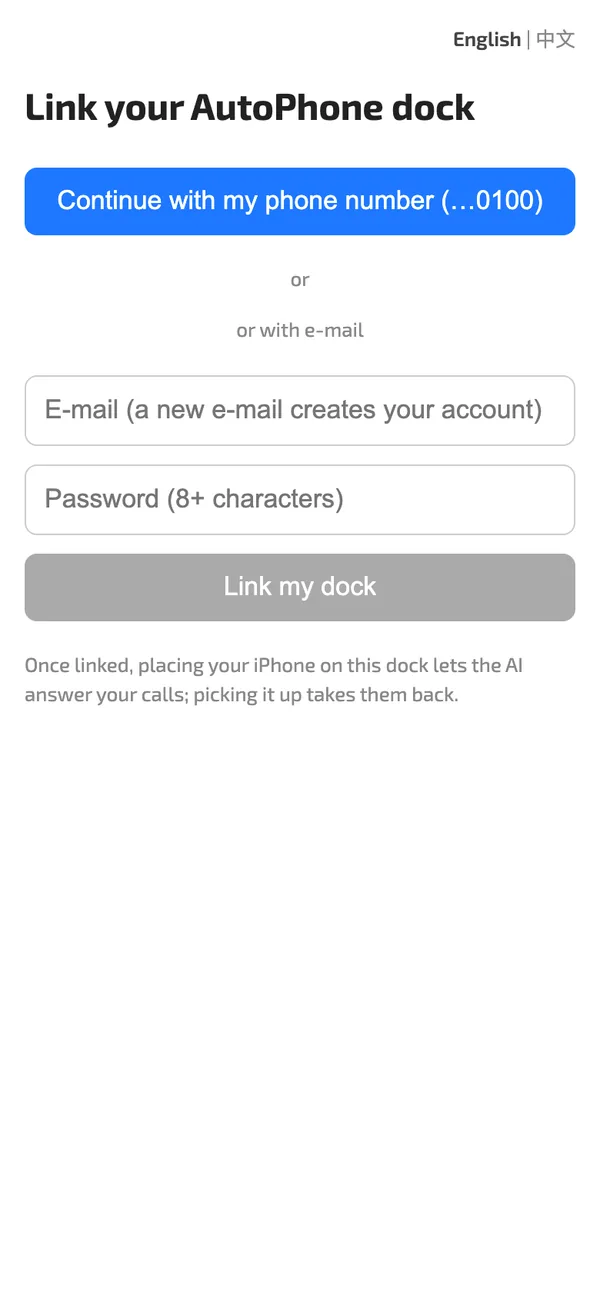
Link: phone number, Google or e-mail - Put the phone on the dock. If the screen says Place phone on pad, set it on the pad (the circle on the right). From now on your Agent answers its calls.
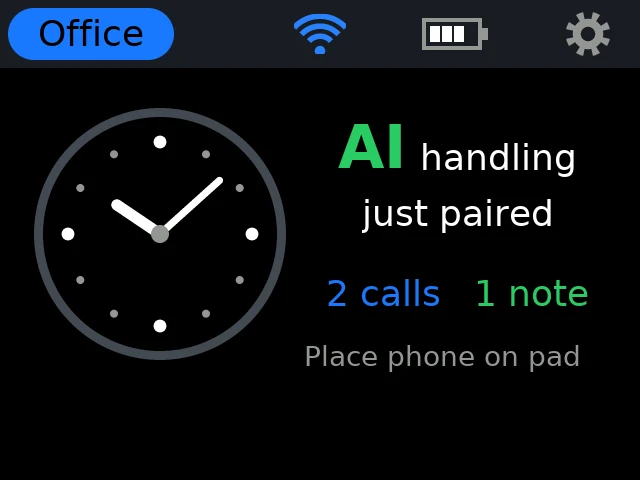
Paired: place the phone on the pad 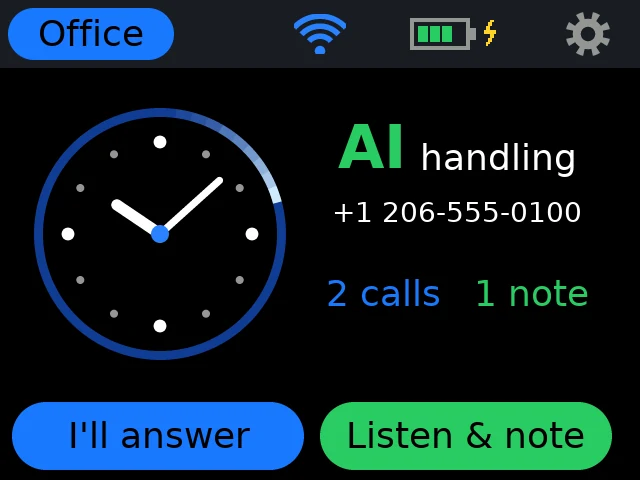
Done: the AI is answering
Then open your dashboard at https://user.autophoneagent.com/app and put it on your phone's home screen (how): it works like an app.
Signing in with your phone number
No Google account or e-mail needed: your phone number is enough — no text messages, no passwords.
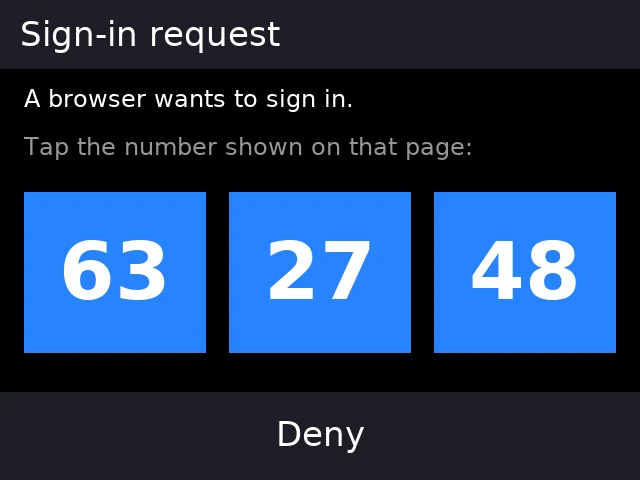
- When you set up the dock with your phone on it, the sign-in page offers Continue with my phone number. Tap it: the page shows a two-digit number and the dock's screen shows three. Tap the same number on the dock (or Deny if it was not you). Your account is made with your number and the dock is linked to it.
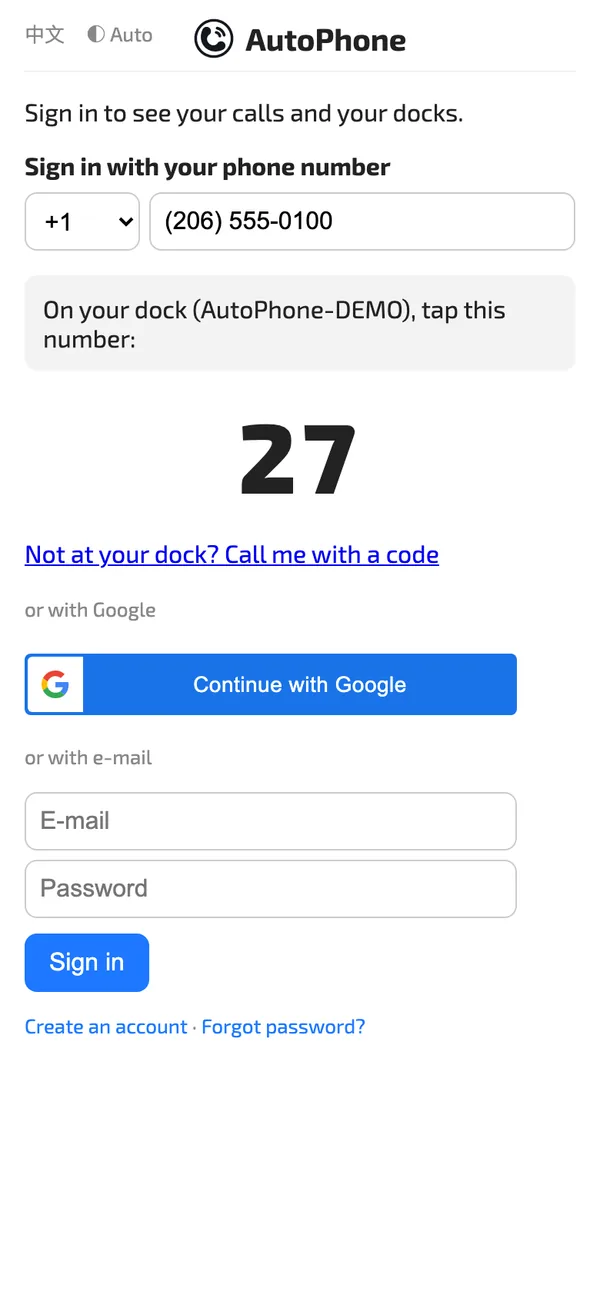
- Later, on any phone or computer: open the dashboard, choose Sign in with your phone number, enter it with its country code and tap Continue. If one of your docks is online, the page shows a number: tap the same one on the dock's screen within a minute.
- Away from your docks: tap Not at your dock? Call me with a code. We call your number and read a six-digit code; type it in within five minutes (US numbers for now).
Only someone at your dock can approve, so a person who knows your number cannot sign in from elsewhere. You can add an e-mail later for notices (Account).
2. The dashboard and the dock
The dashboard has six tabs: Home, Calls, Notes, Docks, Try and Account. Colours mean the same thing everywhere — on the dashboard and on this website:
| Colour | Means |
|---|---|
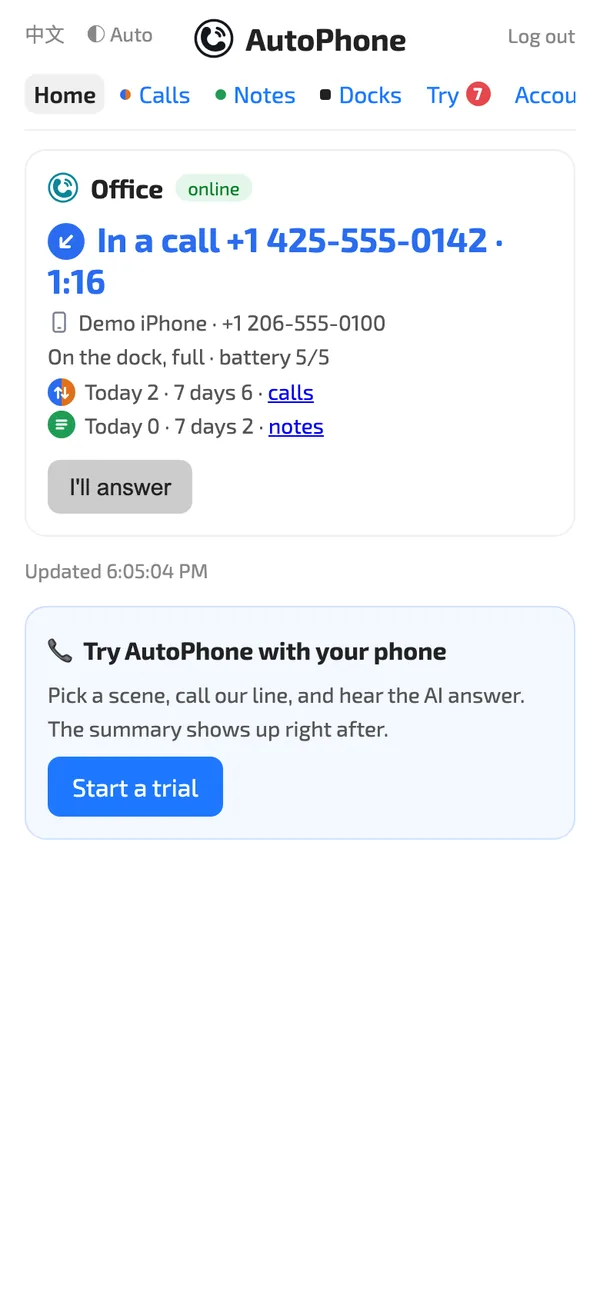
| Blue ↙ | A call your Agent answered |
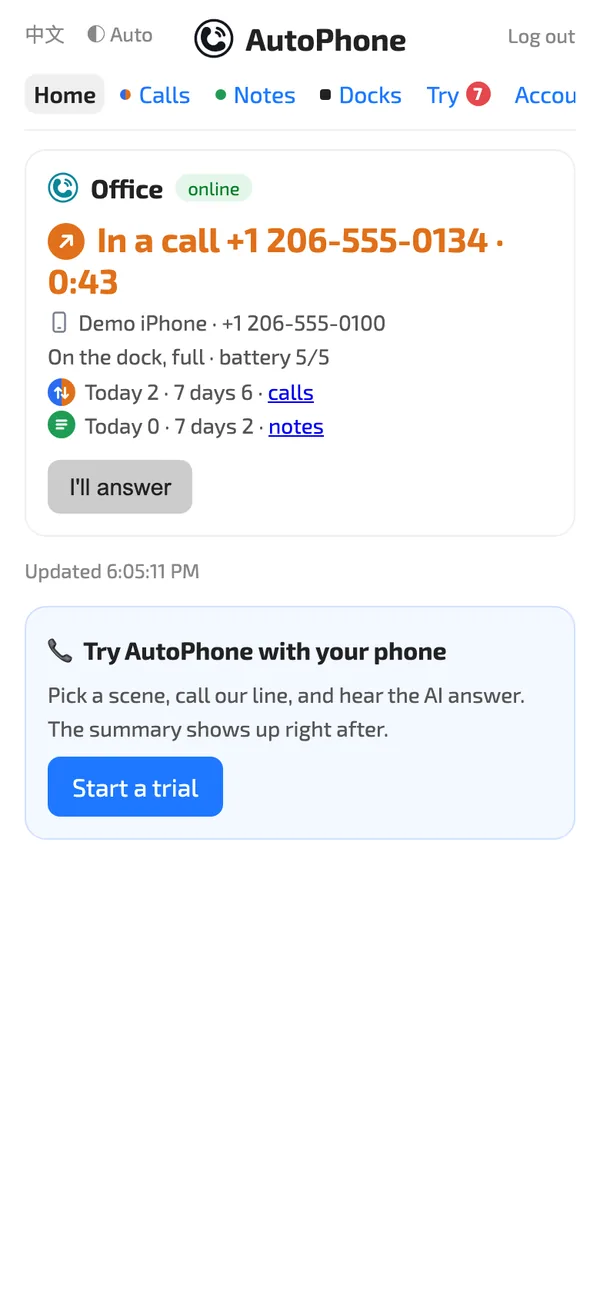
| Orange ↗ | A call your Agent placed for you |
| Half blue, half orange | Both kinds of call (the Calls tab, call counts) |
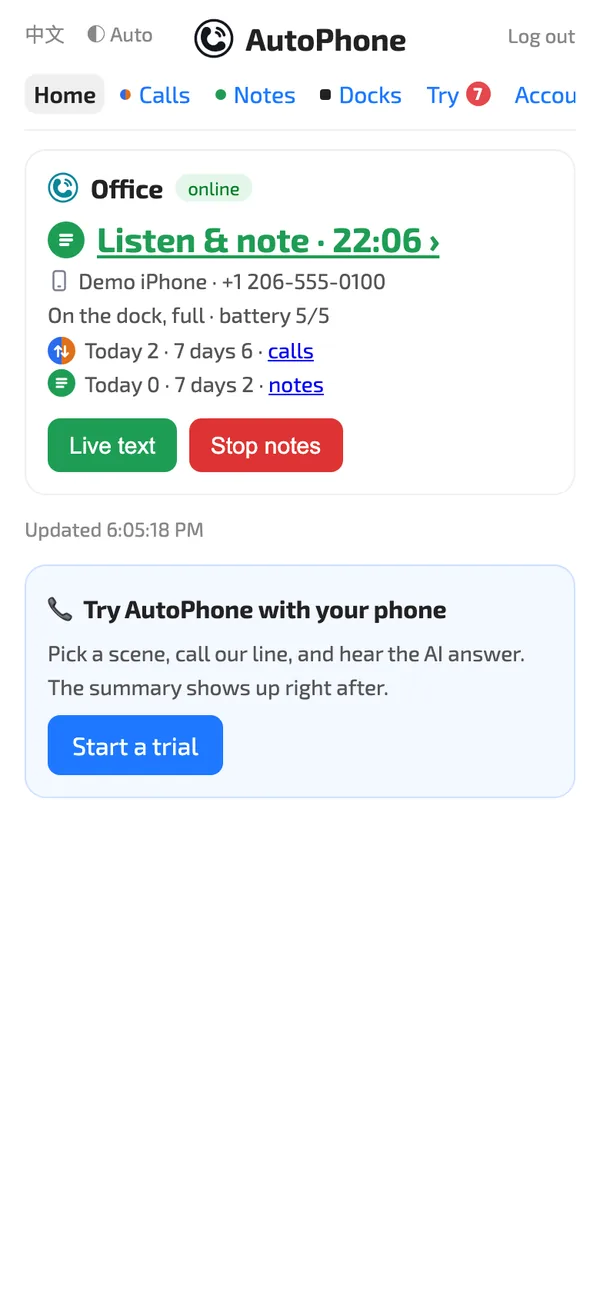
| Green | Meeting notes |
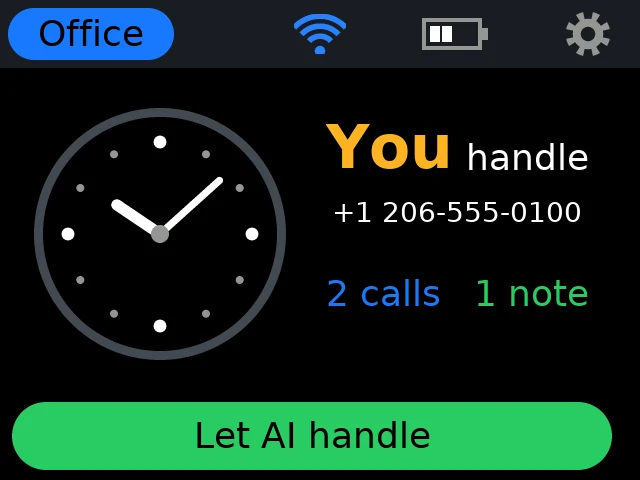
| Amber | You answer your own calls (as on the dock's screen) |
| Red | Recording, stop, or something that needs you (the number on Try is the demos you have not tried yet) |
Home
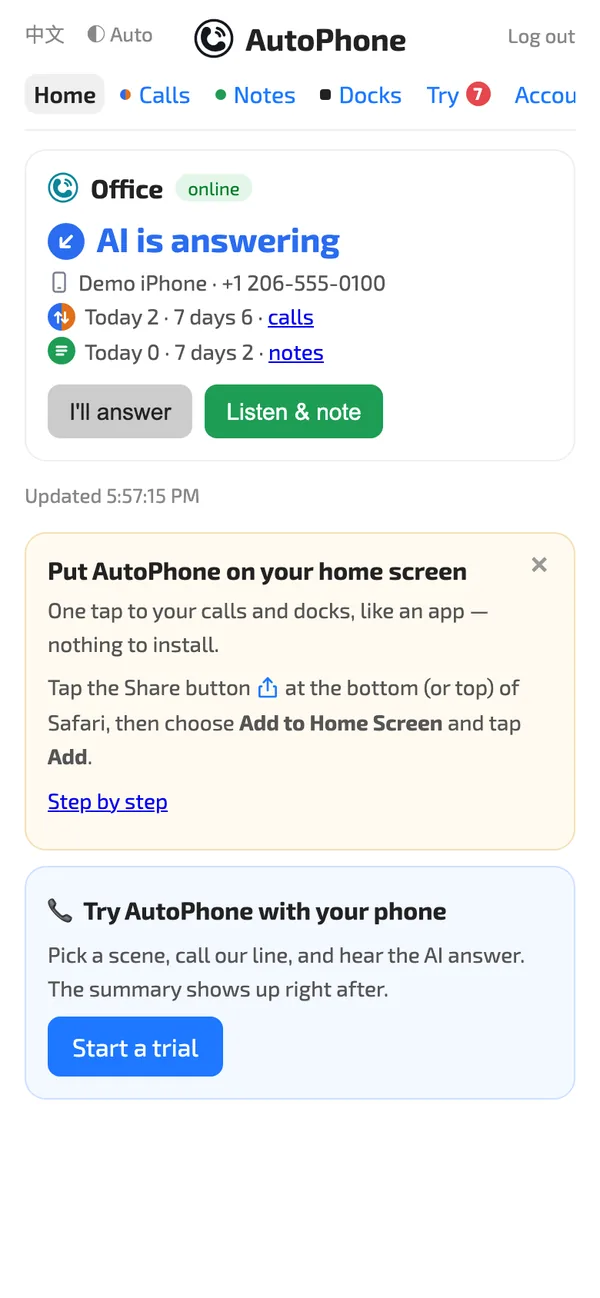
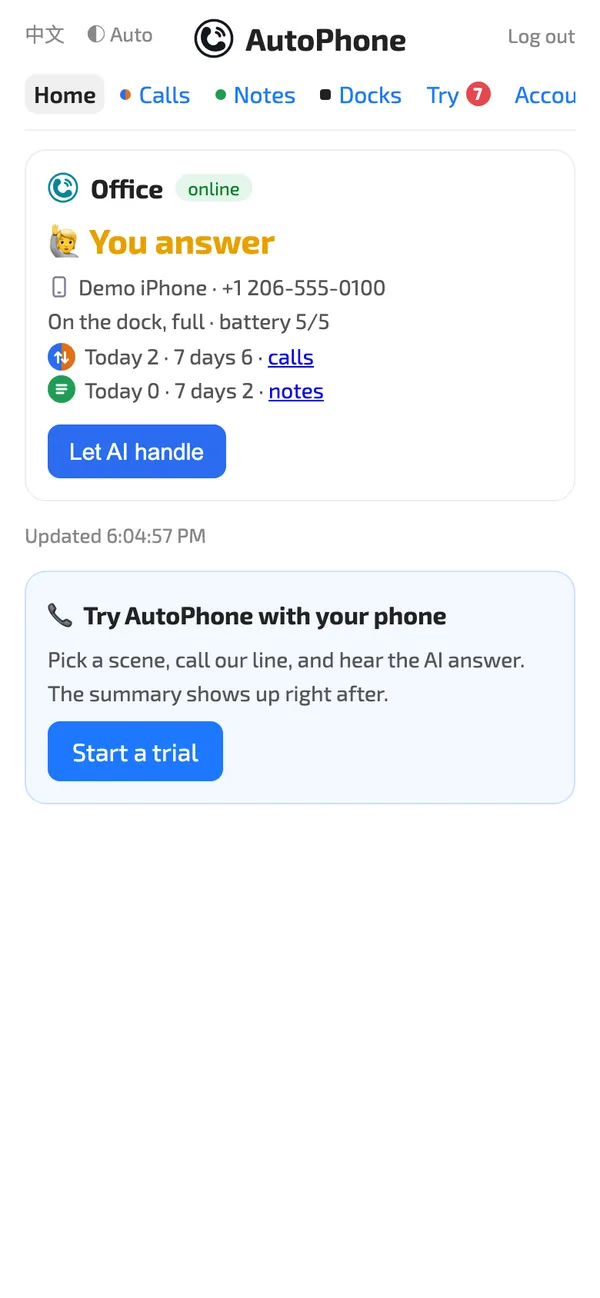
One card per dock, updated every few seconds: who answers right now, the phone on it, a call or meeting in progress, and today's calls and notes. Its buttons:
- I'll answer — calls ring on your phone again; the Agent steps aside.
- Let AI handle — the Agent is on duty again.
- Listen & note — start meeting notes (docks with a microphone).
- Live text / Stop notes — while notes are running.
On the dock
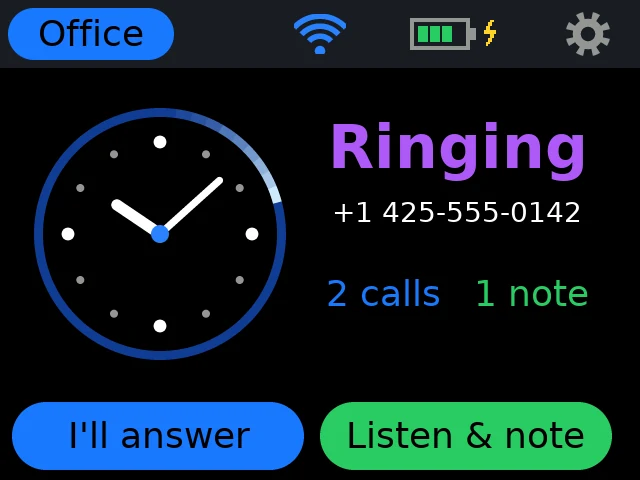
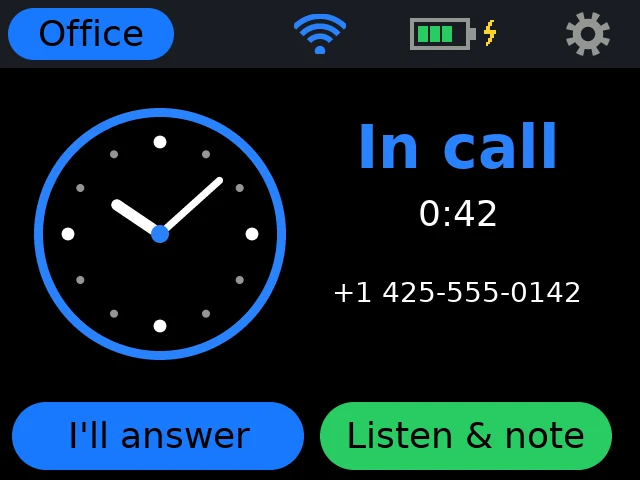
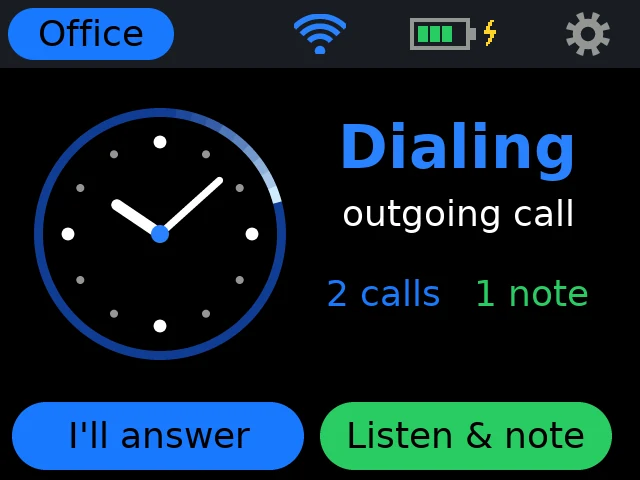
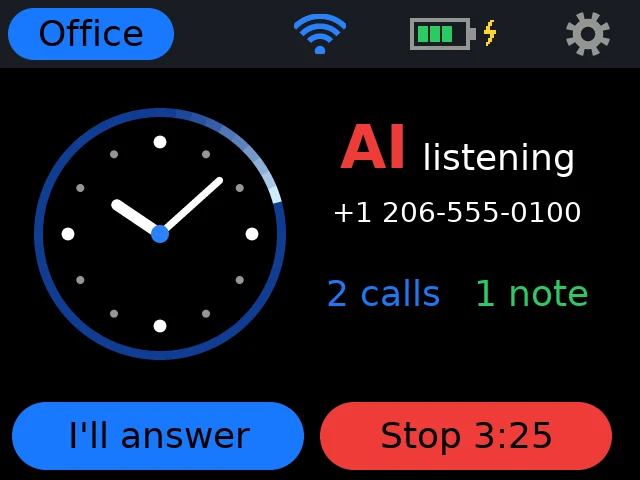
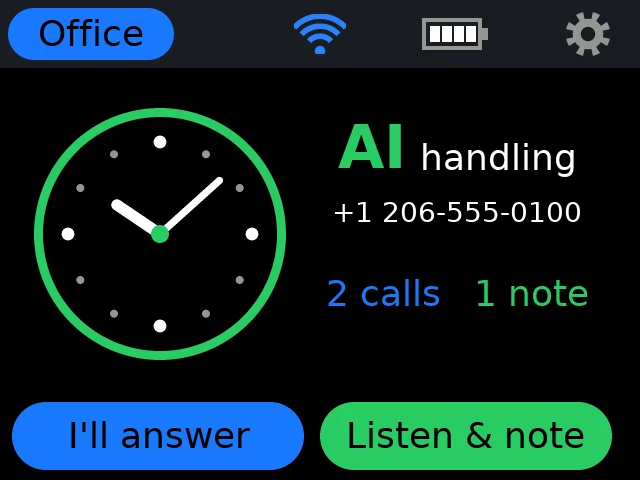
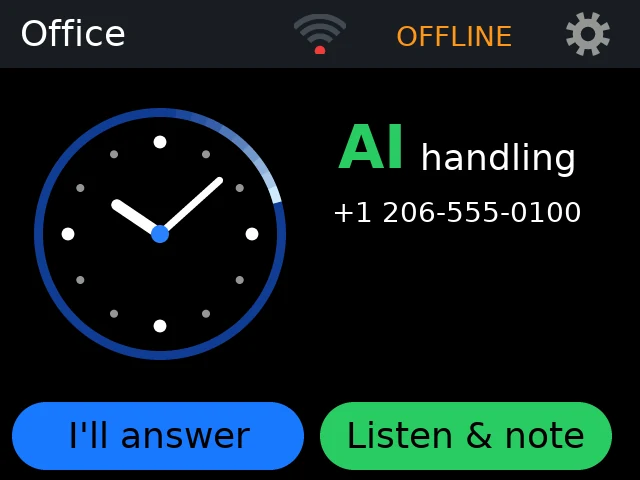
The screen shows who answers, the phone's number, the clock and today's calls and notes. Tap I'll answer to take your calls back. Lifting the phone off the dock does the same; put it back and the Agent is on duty again.
Charging
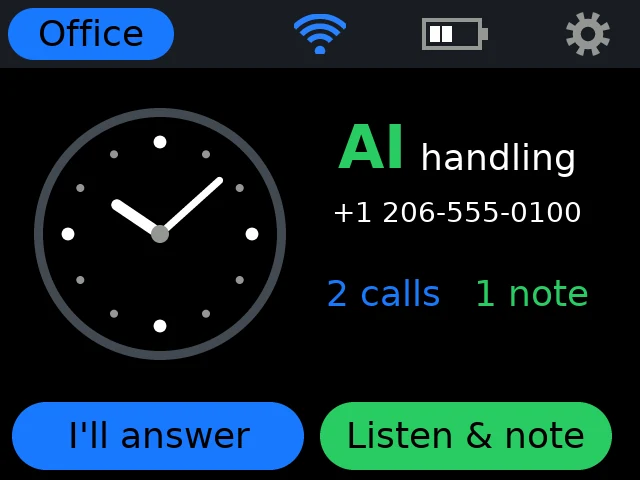
The dock charges your phone on its pad (the circle on the right). The ring around the clock shows how: blue with a light running round while the phone charges, green when it is full, grey when the phone is off the pad. The battery in the top bar is the phone's (a bolt while it charges).
Today's calls on the dock
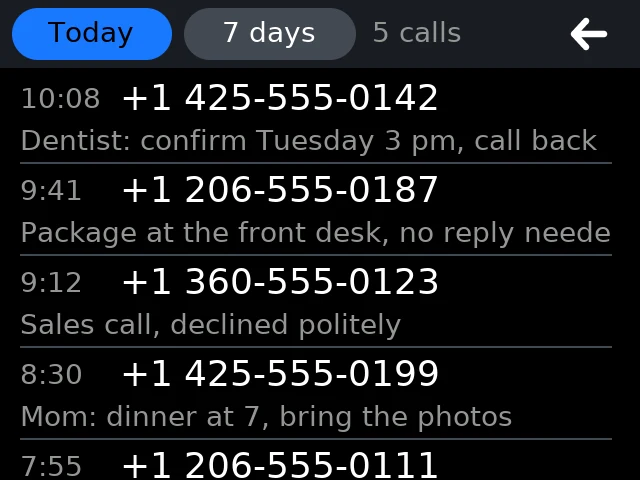
Tap 2 calls on the screen for the list: Today or 7 days, each call with its time, the caller and one line of what it was about. Drag to scroll; the back arrow, or a minute untouched, closes it.
The dock's settings
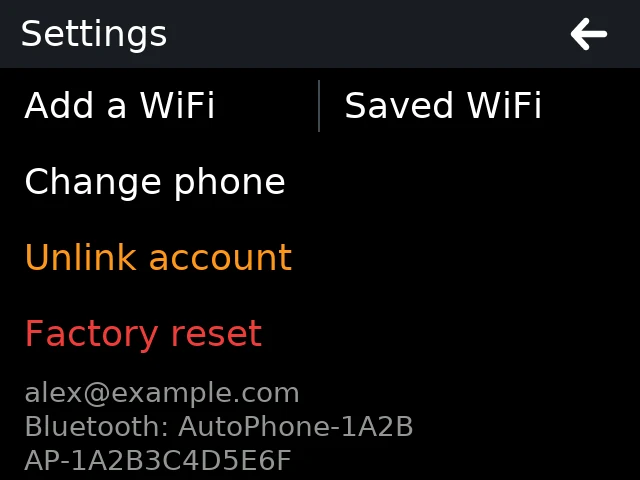
Tap the gear (top right):
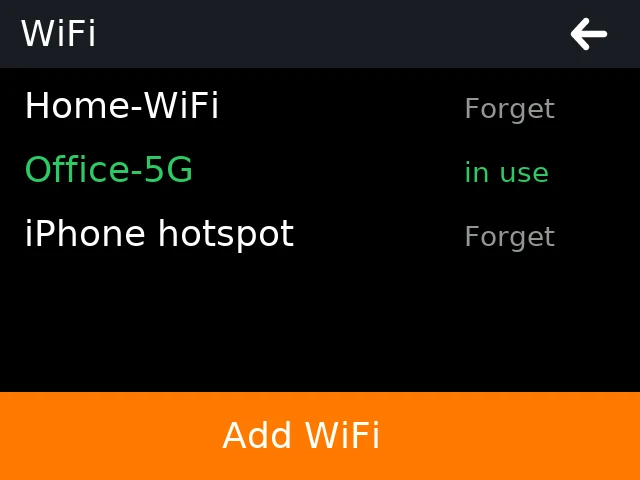
- Add a WiFi / Saved WiFi — join a new network, or forget one. Tapping the WiFi or battery icon (or holding the top bar) opens the WiFi list too.
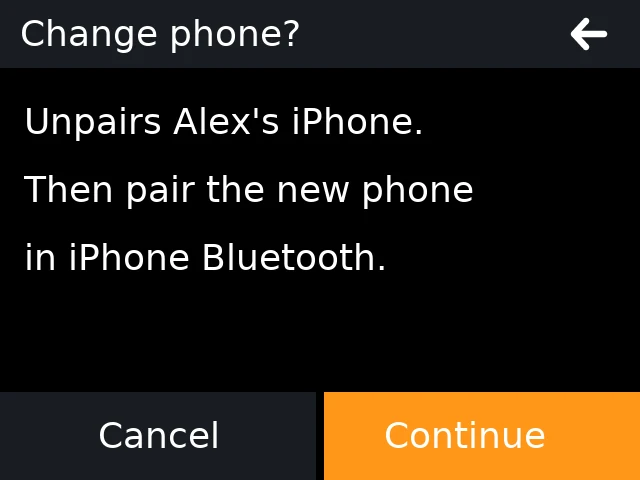
- Change phone — the dock lets go of this phone, so you can pair another.
- Unlink account — the dock leaves your account (to give it to someone).
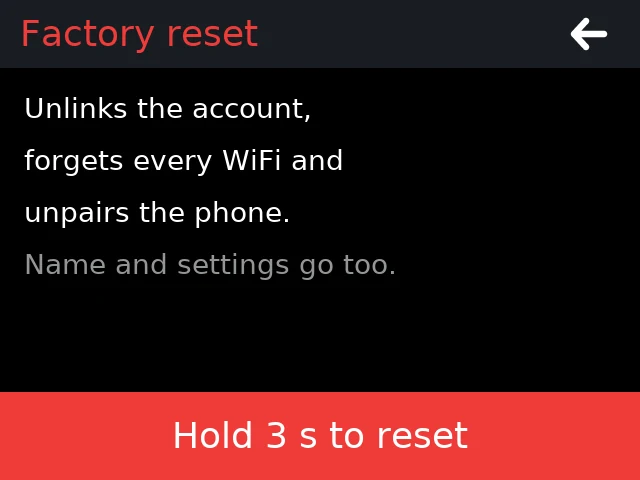
- Factory reset — hold for 3 seconds: unlinks the account, forgets every WiFi and the phone.
At the bottom: the account, the dock's Bluetooth name and its device ID — handy when you write to support. The back arrow closes a page.
Manage this dock from any phone
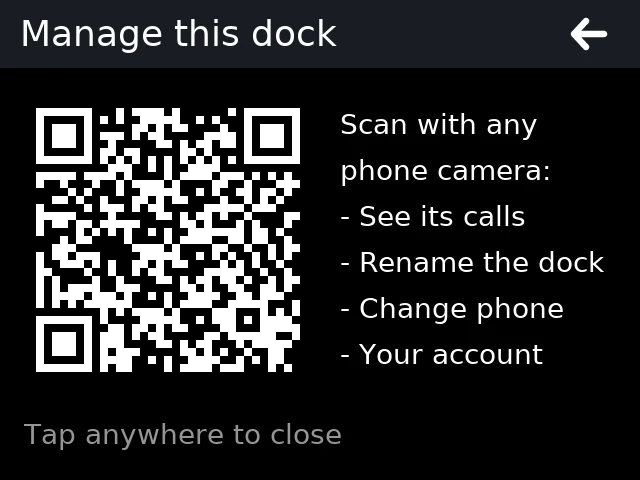
Tap the dock's name (top left): a code appears. Scan it with any phone's camera to see the dock's calls, rename it, change phone or open your account. You sign in first; only the dock's owner gets in.
Put the dock on your phone's home screen
Keep your dock one tap away: add its page to your home screen once, and it opens like an app — no app to install, and you stay signed in. On iPhone (Safari):
- Point the Camera at the code on the dock and tap the yellow Safari link that appears.
- Safari opens your dock's page (sign in first if it asks). Tap the Share button at the bottom (the square with an arrow).
- Scroll down the list and tap Add to Home Screen.
- Keep the name AutoPhone and tap Add (top right).
- The AutoPhone icon is on your home screen.
- Tap it: your calls, notes and docks open full screen, like an app.
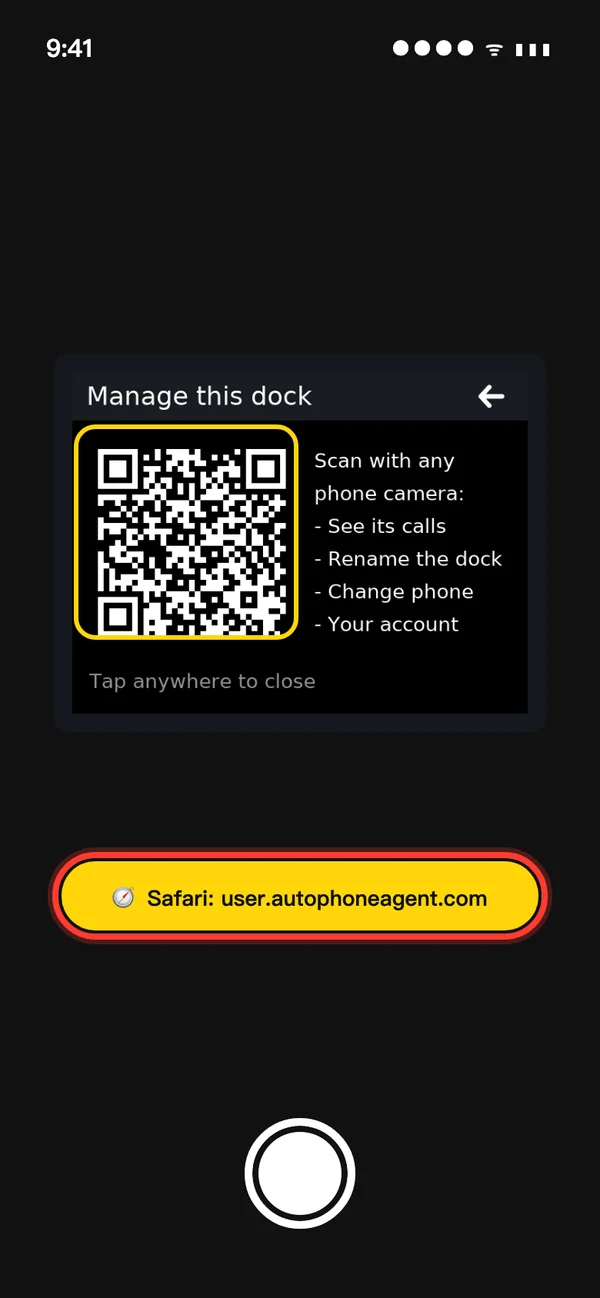
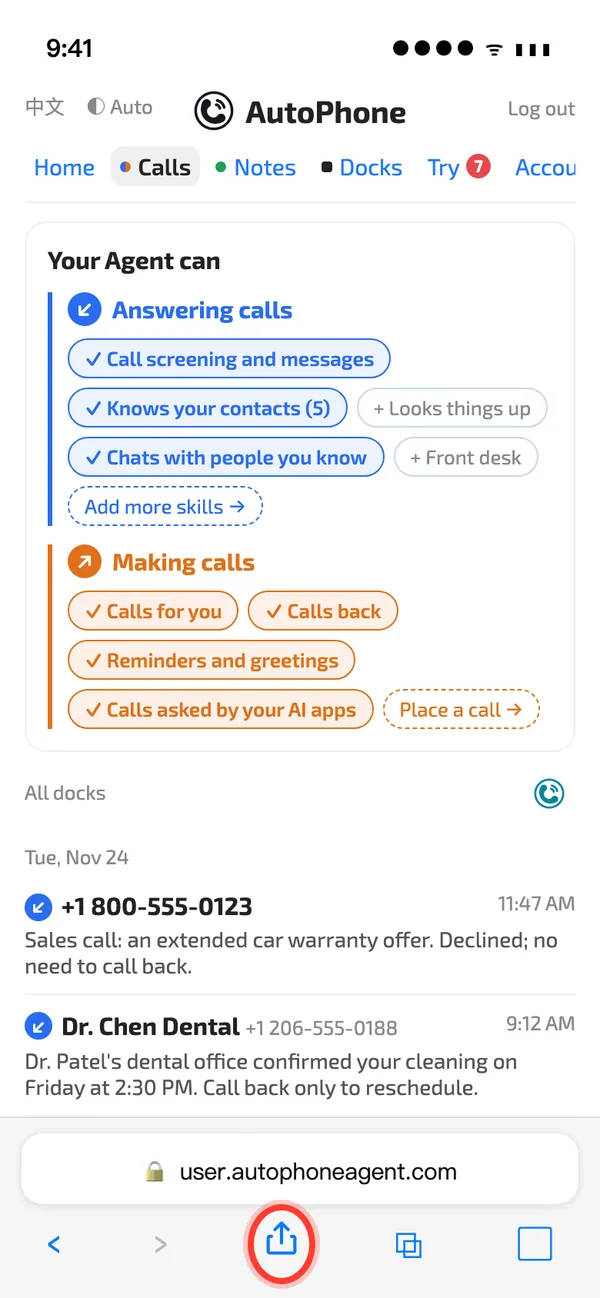
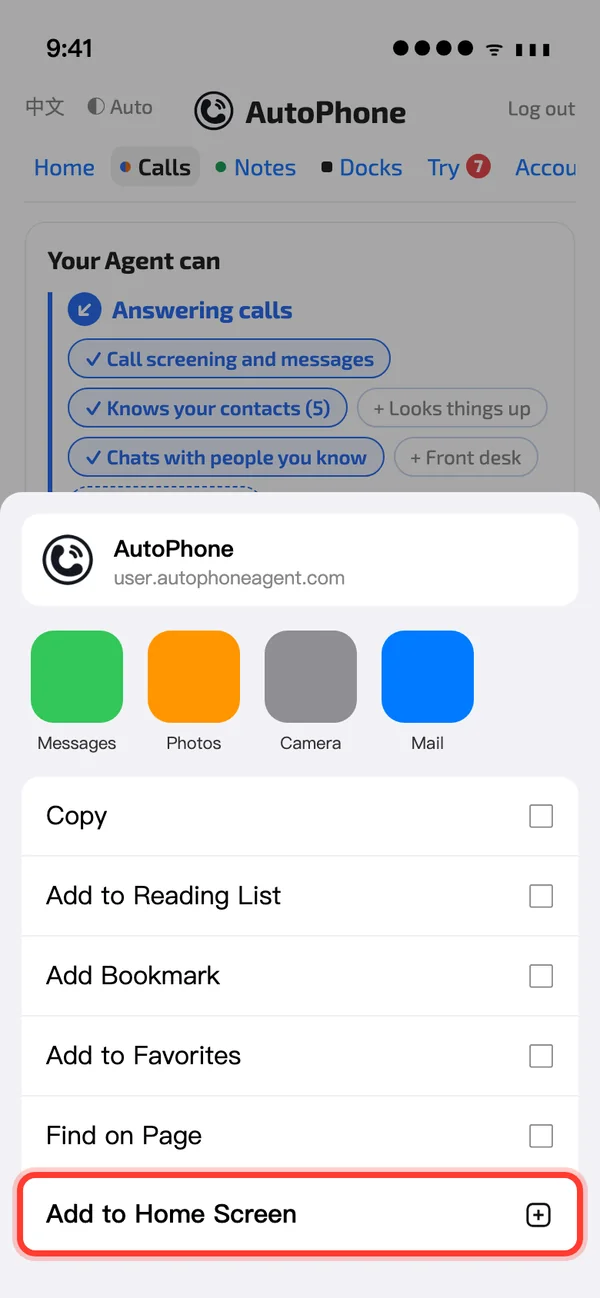
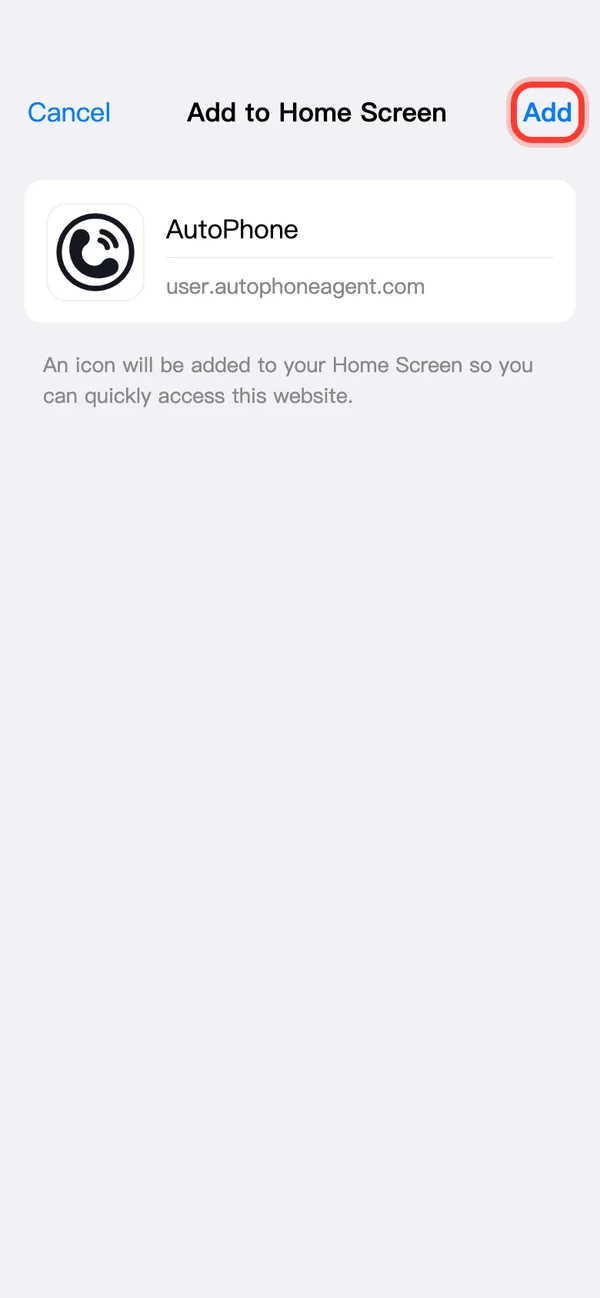
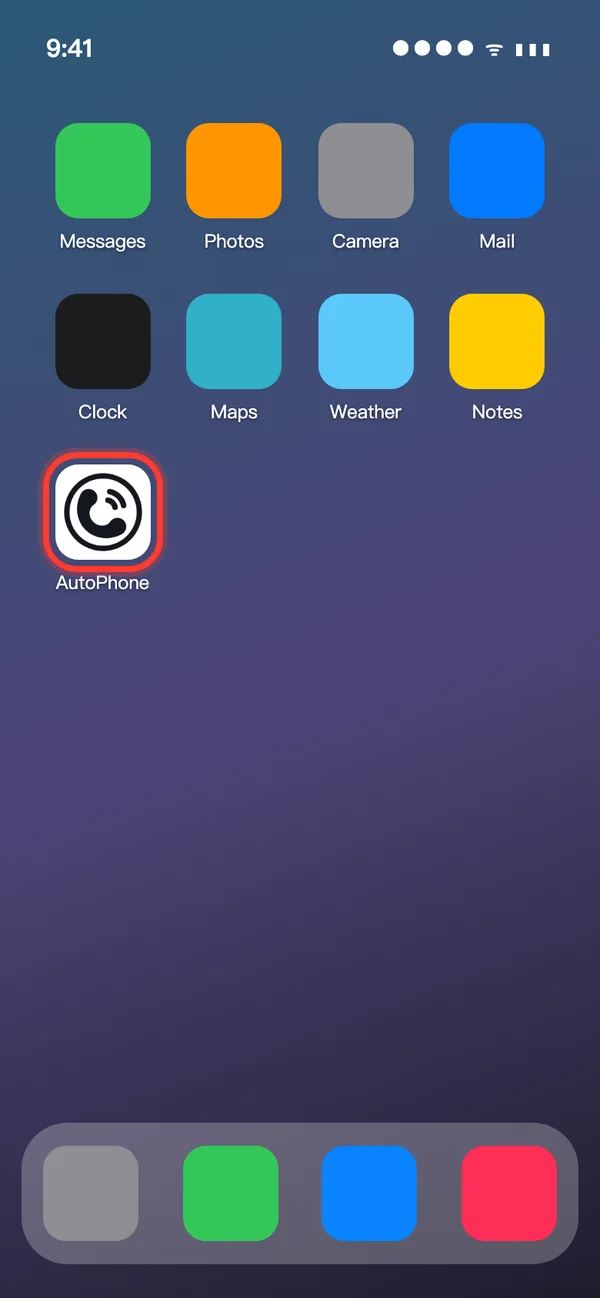
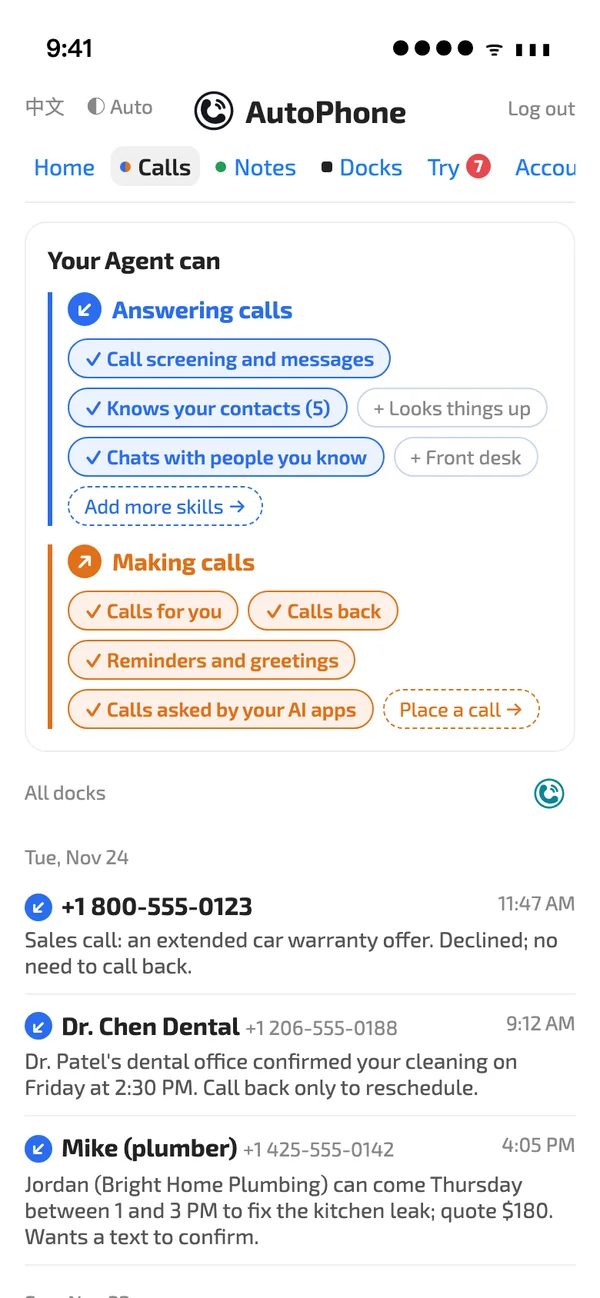
On Android (Chrome): open the page the same way, tap the menu ⋮ (top right), then Add to Home screen (on some phones Install app) and Add. The pictures are illustrations; your iPhone's screens may look a little different with other iOS versions.
3. Calls it answers
While the phone is on the dock and the Agent is on duty, it picks up your calls. It greets the caller, finds out who is calling and why, keeps sales pitches and scams at bay, takes messages, and answers in the caller's language (English or Chinese). People in your contacts are greeted by name and treated as people you know.
The Calls tab
At the top, Your Agent can lists its skills: blue for answering, orange for calling (more). Below, every call, newest first, with the caller's name from your contacts (or the name they gave on the call), the number and a one-line summary. With several docks, the coloured dock mark shows which dock took it; tap it for that dock's details.
One call
- Summary and the whole conversation, with the recording.
- DOCX / PDF — download the call as a document.
- Have the AI call back — the Agent calls the person back with what you want to say (a draft is written for you from the call).
- Add to contacts — a new contact, or this number added to someone you already have.
- Remember this voice — see remembered voices.
- Delete — the call and its recording.
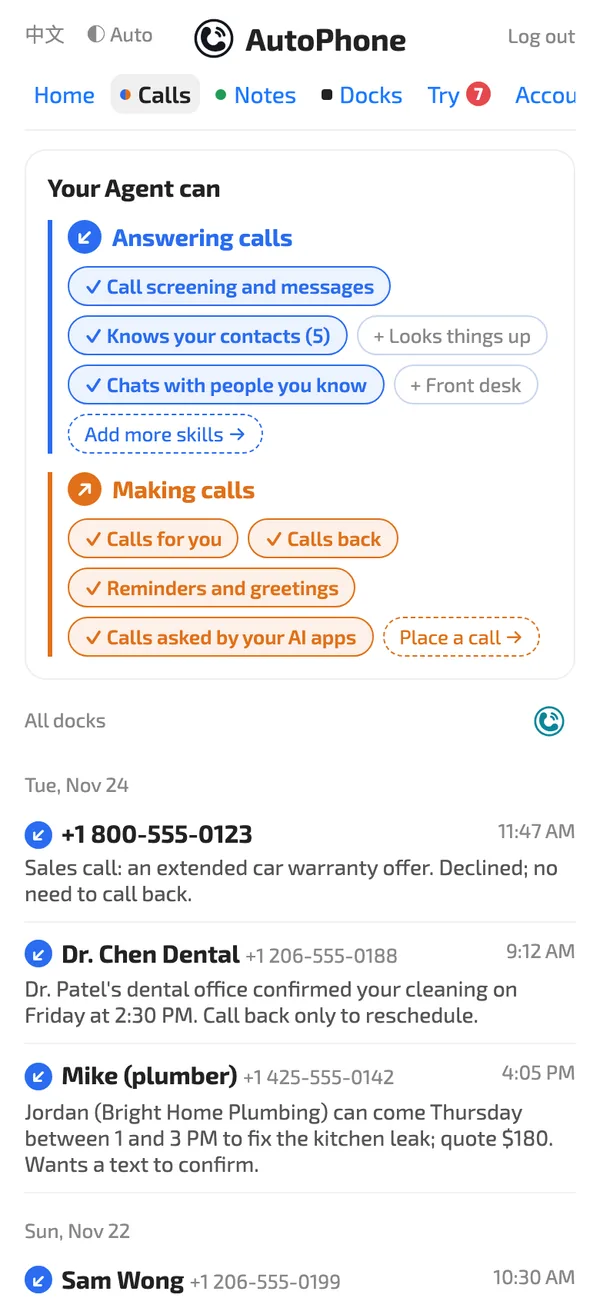
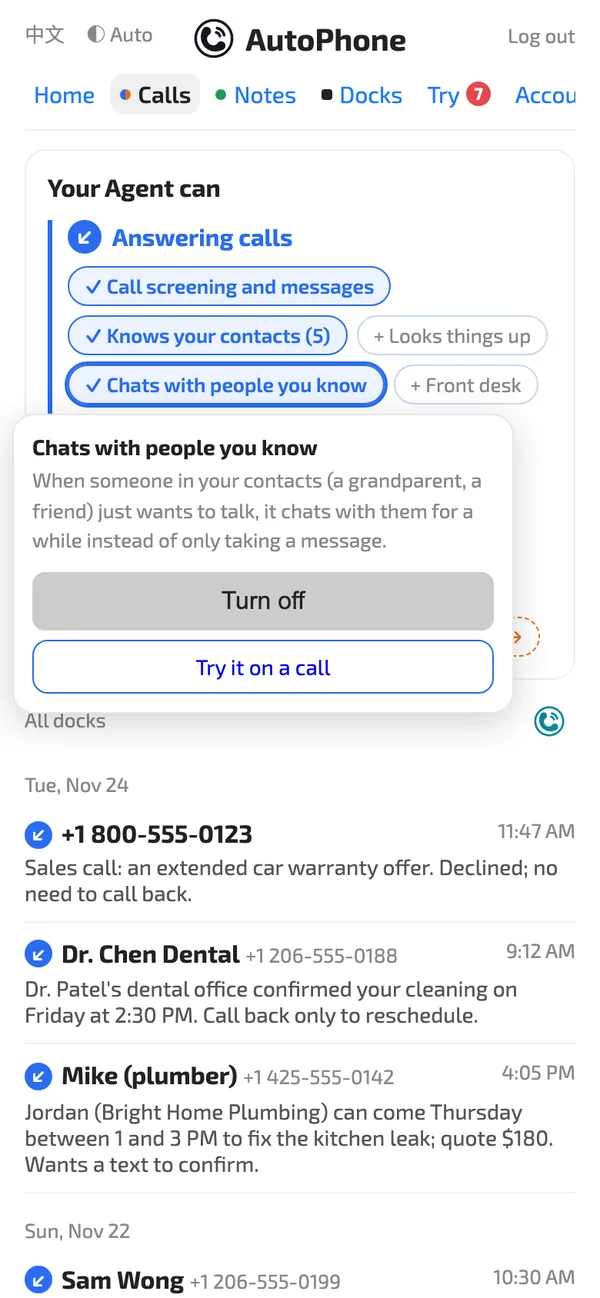
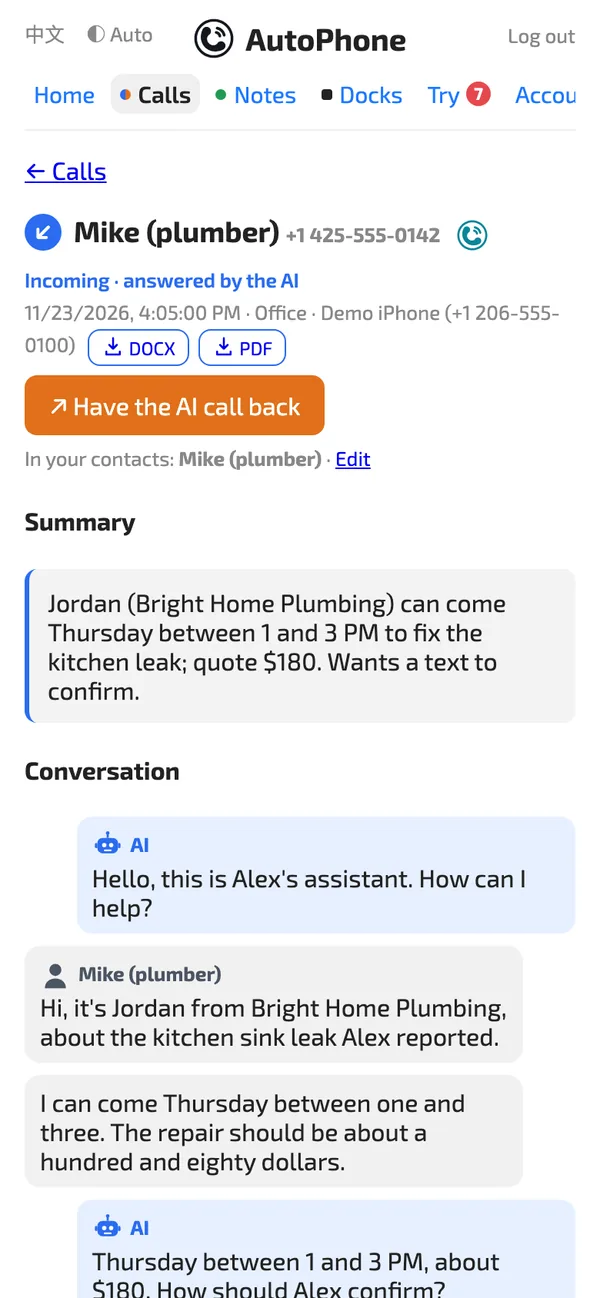
Each call can also be e-mailed to you (Account → E-mail notices).
Appointments from your Google Calendar
For a business: your Agent can book appointments on calls, into the times your Google Calendar is free.
- Connect. Open Calls → Your Agent can → Appointments from your calendar → Google Calendar and click Connect Google Calendar. Google asks for two permissions: to see when you are busy (not what your events are), and to manage one calendar of AutoPhone's own, "AutoPhone bookings". Allow both.
- Set when people can book. The days, from and to, how long each appointment is, a gap between, how far ahead (days) and how much notice (hours), and the services callers can book — write minutes after a service for its own length ("haircut 30, color 120"); a longer service is offered only where it fits. Open times callers hear shows the result for each service.
- That's it. With your phone on the dock, a caller who wants an appointment hears the open times, the Agent reads the day, time, service and name back, and books it only after the caller says yes — then it appears in "AutoPhone bookings" in your Google Calendar and under Upcoming bookings, with the call.
- Moving or cancelling. A caller can move or cancel their booking on the phone, read back and confirmed the same way — only when calling from the number they booked with. From another number the Agent notes the request for you.
- Reminder the day before. With Call each customer the day before on, the Agent calls the customer at the time you pick, from your own number through your dock, and asks whether they can make it; if not, it notes what they want for you. Your no-call hours and daily limits apply, and the phone must be on the dock at that time.
- Cancelling yourself. Cancel under Upcoming bookings removes it from your calendar (and its reminder); call the customer to let them know.
- Disconnect revokes access at Google at once; bookings already made stay in your calendar.
4. Calls it places for you
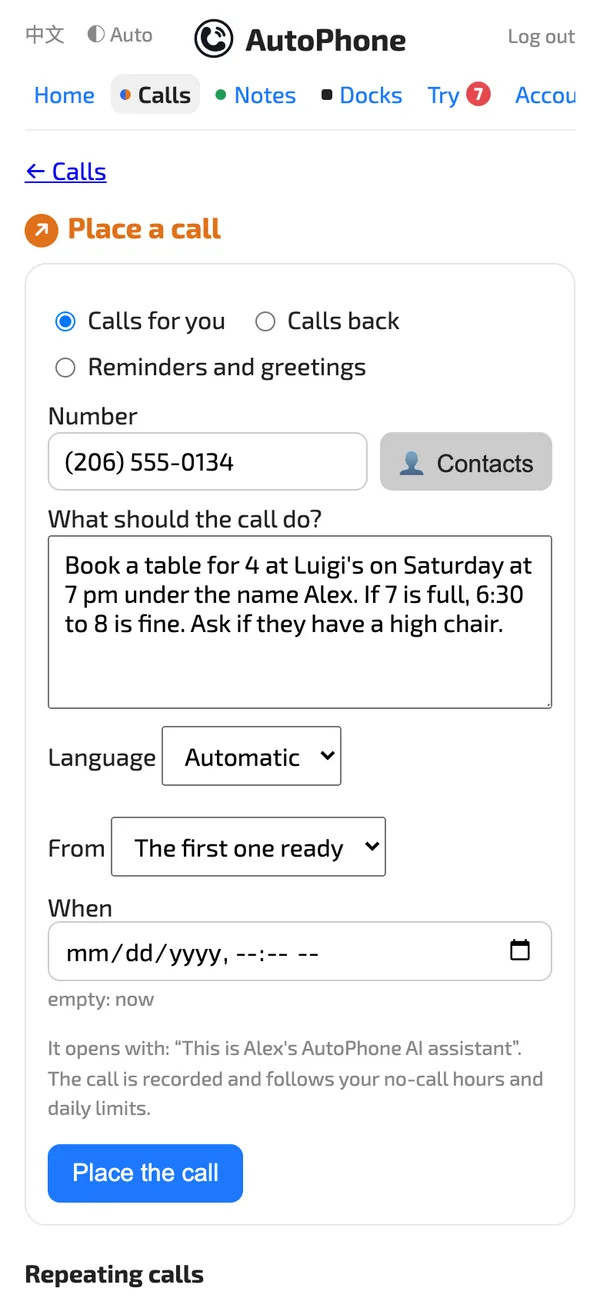
Booking a table, moving an appointment, asking a store about prices or opening hours: write what you need and your Agent calls from your own phone and number, then reports back. Open Calls → Place a call.
- Kind — Calls for you (an errand), Calls back, or Reminders (next section).
- Number — type it, or tap Contacts and pick someone (search by name or number).
- What should the call do? — write it as you would to a person: what to ask, what is fine if the first choice is not available, what to tell them. The more you say, the better the call.
- Language (or automatic), From (which dock), When (empty = now).
- Place the call.
It opens with “This is your name's AutoPhone assistant” (set Calling on behalf of on the same page; tick the box to also say it is an AI — recommended). The result shows under Calls placed: the status, a short summary and See the call for the whole conversation and the recording.
Rules every call follows
- The dock must be online with the AI holding the phone (not I'll answer).
- No calls during your quiet hours (9 pm to 8 am by default, in your time zone; change them on the same page).
- Up to 20 different numbers a day, and up to 20 calls to one number.
- US numbers only for now. Emergency, crisis and premium-rate numbers are never called.
- Asked in earnest, it never claims to be a person or to be you. You are responsible for the calls made for you (see the Terms).
5. Reminders
Calls at set times to the people you choose: a reminder to take a pill, an appointment tomorrow, a birthday or holiday greeting to a client or a friend. Turn the skill on first (Calls → Your Agent can → Reminders, or from Try), then in Place a call choose Reminders and a Repeat:
- Just once — at the time you set.
- Every day, On weekdays, or On the days I pick — at the same time each of those days.
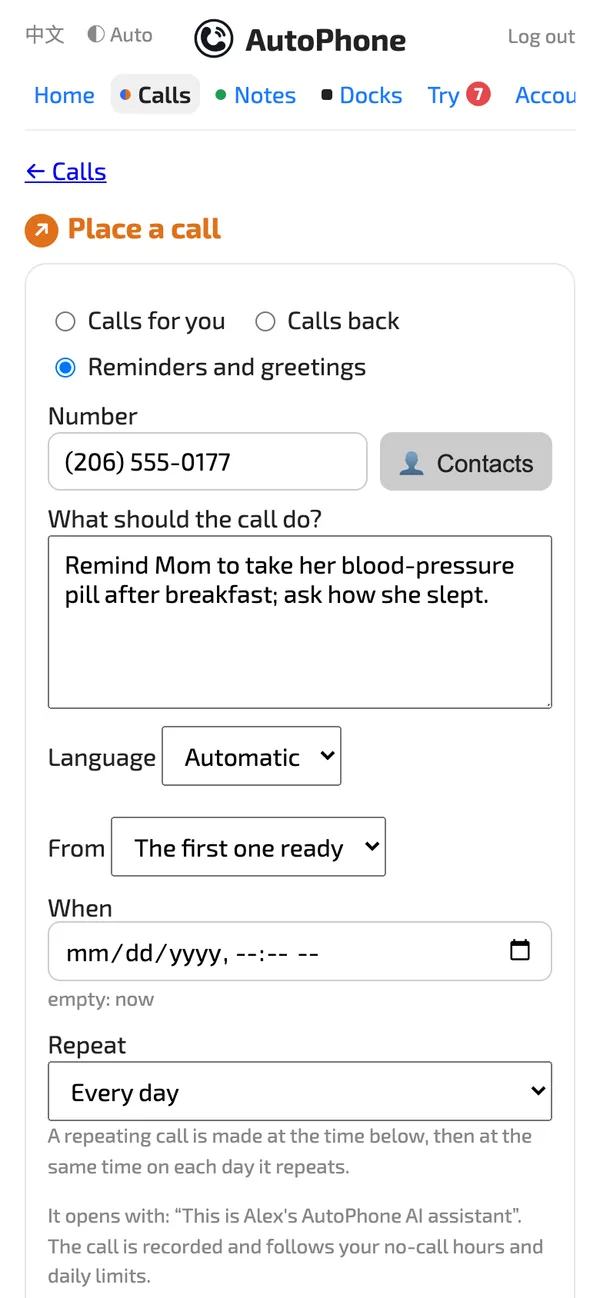
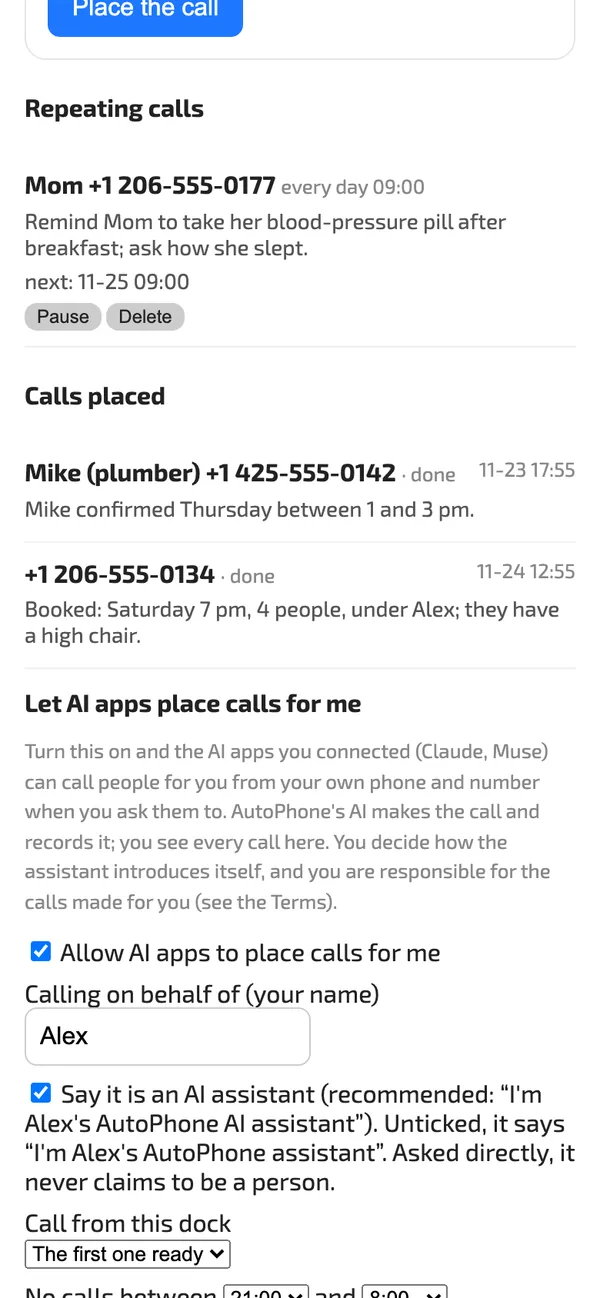
Repeating calls are listed under Repeating calls, where you can pause, resume or delete them. If a call is missed, the next one still goes out on schedule.
Birthday reminders
Calls to family are best made by you. Birthday reminders don't call them: on the day, at the time you choose, AutoPhone calls you — "today is Mom's birthday" — so you can call her yourself. Open Calls → Your Agent can → Birthday reminders → Birthdays (or try it first in Try), add the name, the date and the time, and pick which of your numbers to call. The call comes from AutoPhone's own line, so your phone rings even when it is on the dock. It repeats every year; a birthday on February 29 is reminded on February 28 in other years.
6. Meeting notes (Listen & note)
On a dock with a microphone, the Agent listens to a meeting, a class or a phone on speaker next to it, and writes the notes: the minutes, the to-dos, who said what, and the full text.
- With the AI holding your phone, tap Listen & note on the dock's screen or on Home.
- Open Live text to read along. Grey lines are the first draft; they are corrected within about half a minute.
- Tap the button again (or Stop notes) when it is over. A session can last up to three hours.
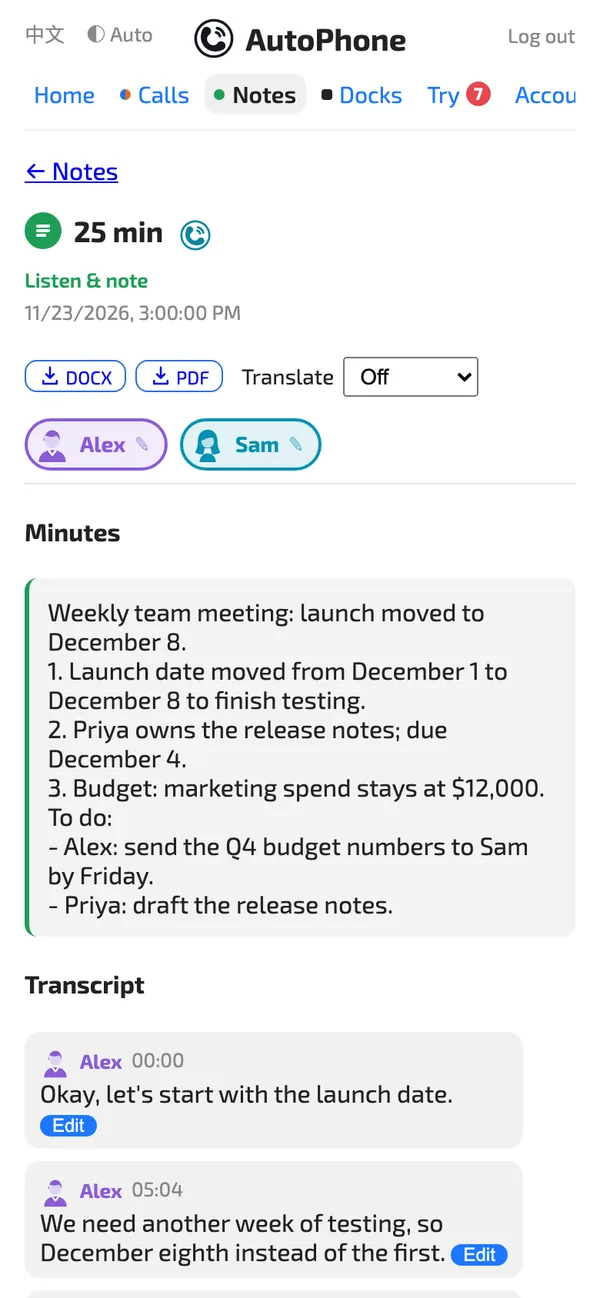
- A few minutes later the notes are ready in Notes (and in your e-mail if notices are on): proofread text, speakers and minutes.
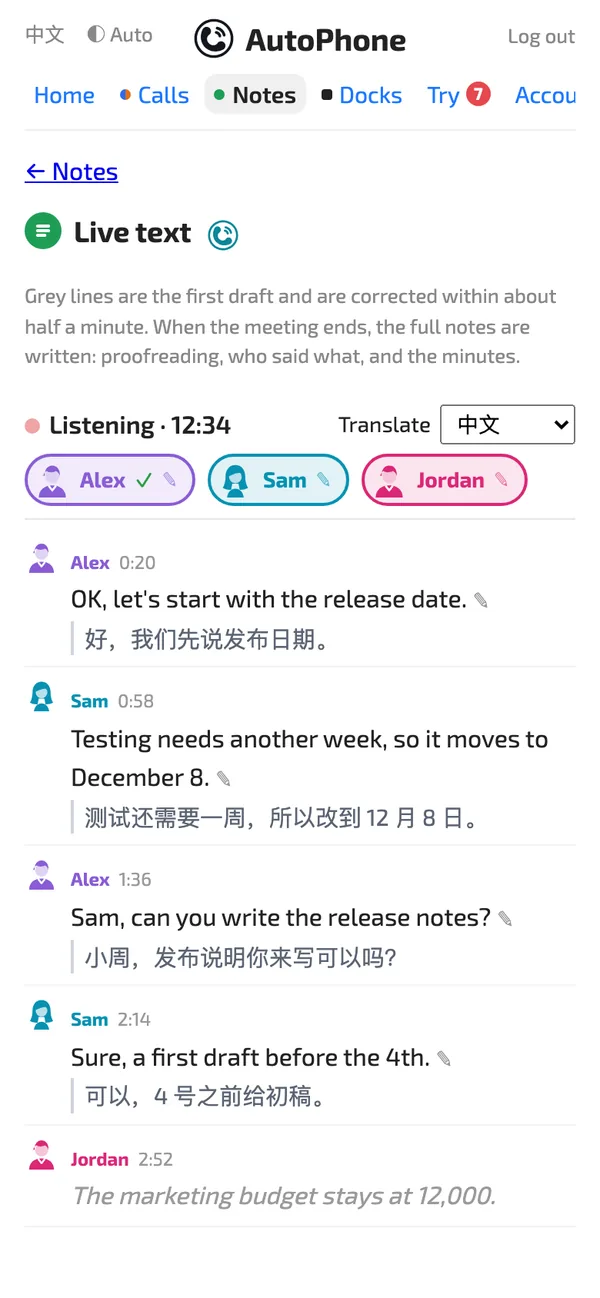
On a note's page
- The people bar stays at the top while you scroll. Each speaker has a colour and an icon; tap a person to name them, set the icon (male / female / neutral), say they are the same person as another speaker (when one voice was split in two), or remember the voice.
- Translate — read the note in Chinese, English, Spanish, Japanese, Korean, French or German, line by line under the original. Works while you listen, too.
- Edit any line. When you fix a word (say a name that was heard wrong), the Agent offers to fix the same mistake everywhere else in the note, and to add the word to My vocabulary so it is heard right next time.
- DOCX / PDF — download, with your edits and the translation if one is shown.
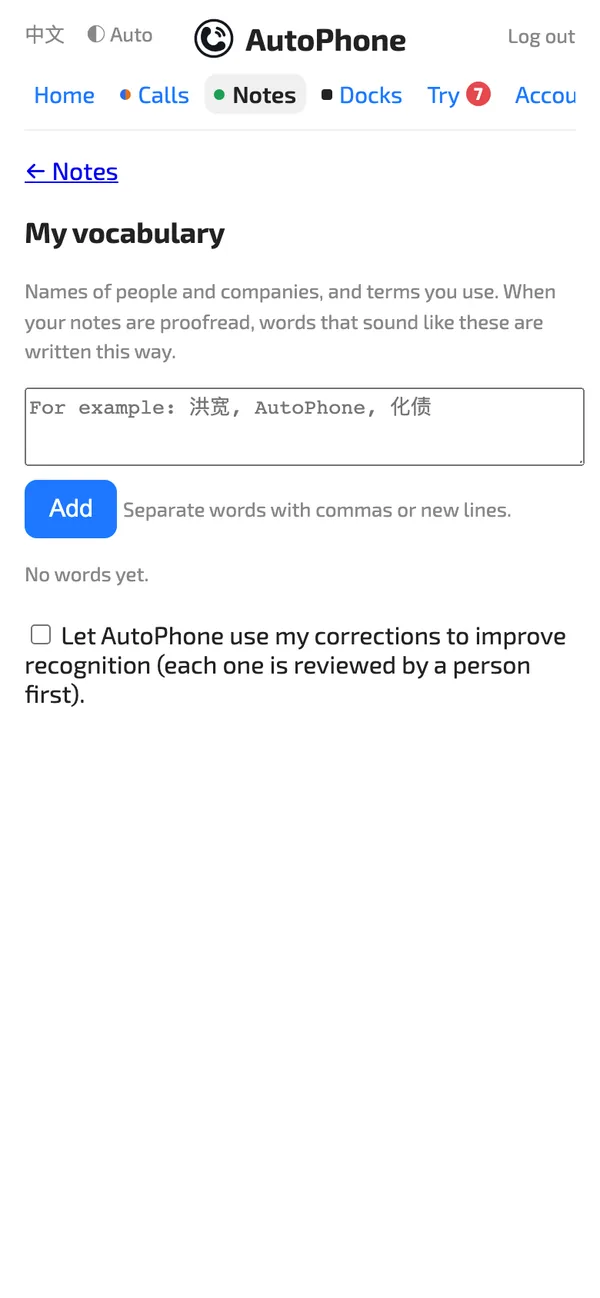
Names, company names and terms you use often can be added in Notes → My vocabulary.
7. Names and remembered voices
Your Agent can recognise voices it has been told about, so speakers in your meetings (and callers) get their names by themselves.
- Your own voice: in a note where you spoke, tap the person who is you, choose Remember this voice and tick This is me.
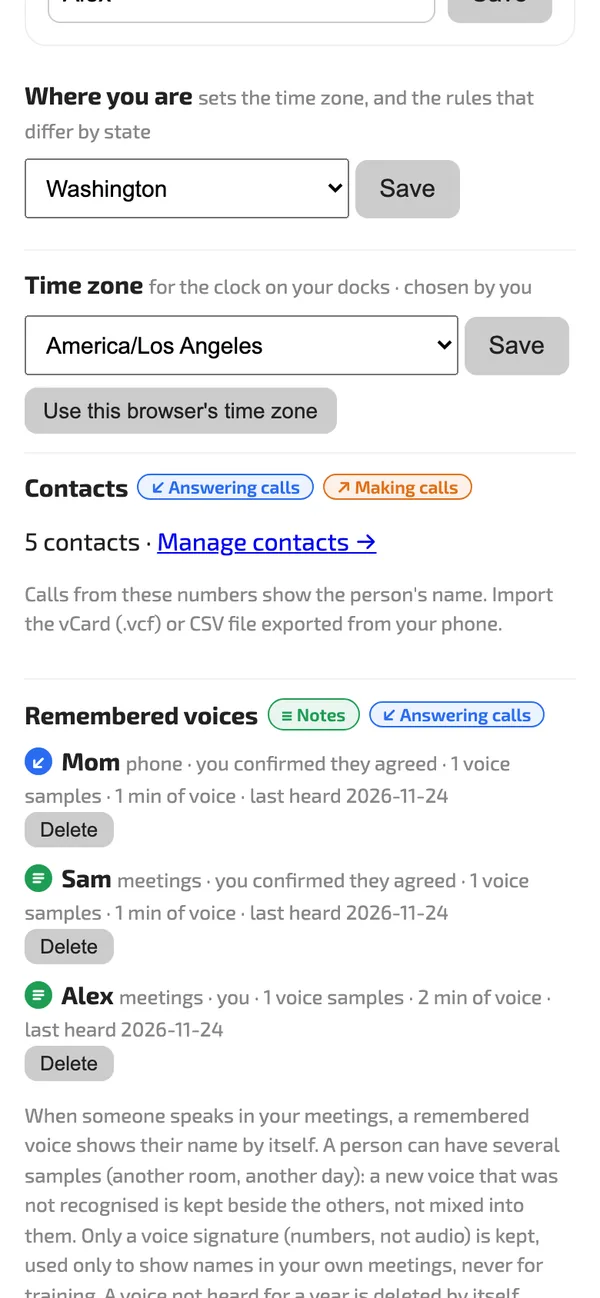
- Someone else's voice needs that person's agreement. In most states you confirm they agreed. In Illinois, Texas and Washington the person agrees themselves through a link you send them; their name appears once they have agreed.
- A person can have several samples (another room, another day). They are kept side by side, never mixed.
- Only a voice signature is kept (numbers, not audio). It is used only to show names in your own notes and calls, never for training, and deleted by itself after a year without being heard.
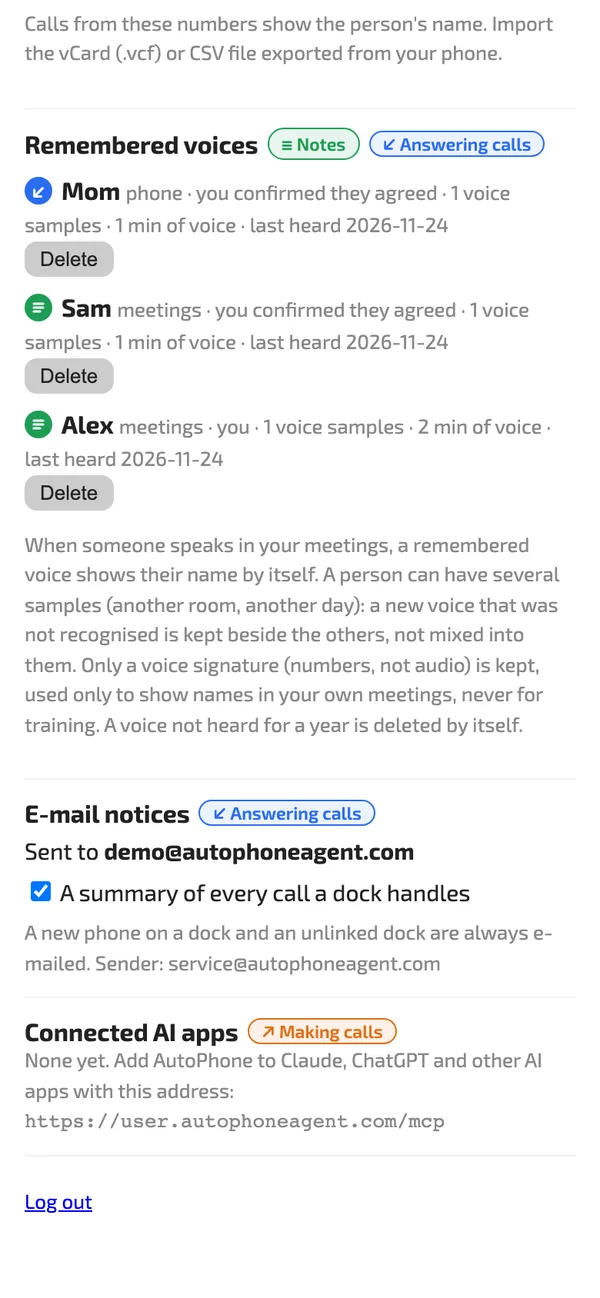
- See and delete them in Account → Remembered voices.
On calls, the name a caller gives (“Hi, it's Jane from the clinic”) is shown by itself too, marked said on the call.
8. AI identities, voices and skills
AI identities
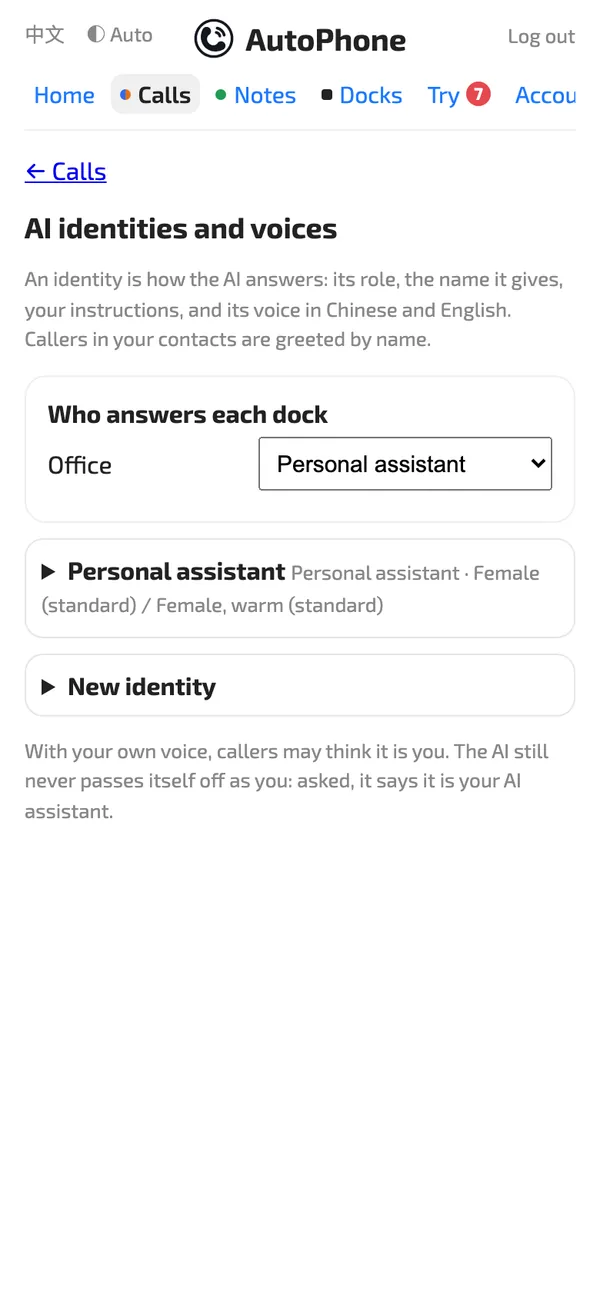
In Calls → AI identities and voices you decide who answers each dock:
- Role — Call screening (the default), Personal assistant (warmer, for family and friends), or Front desk (answers for your business from the information you write: hours, prices, address, bookings).
- Name it gives, instructions in your own words, and a voice for Chinese and one for English, which you can listen to before choosing.
- Pick the identity for each dock. Whatever you write, it never pretends to be you and never agrees to payments or purchases.
Skills
| Answering | Making calls |
|---|---|
| Call screening and messages (always on) Knows your contacts Looks things up — weather, news, prices (paid plans) Chats with people you know Front desk Appointments from your calendar |
Calls for you (always on) Calls back (always on) Reminders Calls asked by your AI apps |
Tap a skill on the Calls page to read what it does and turn it on or off. Try lets you hear a skill before you add it.
9. Contacts
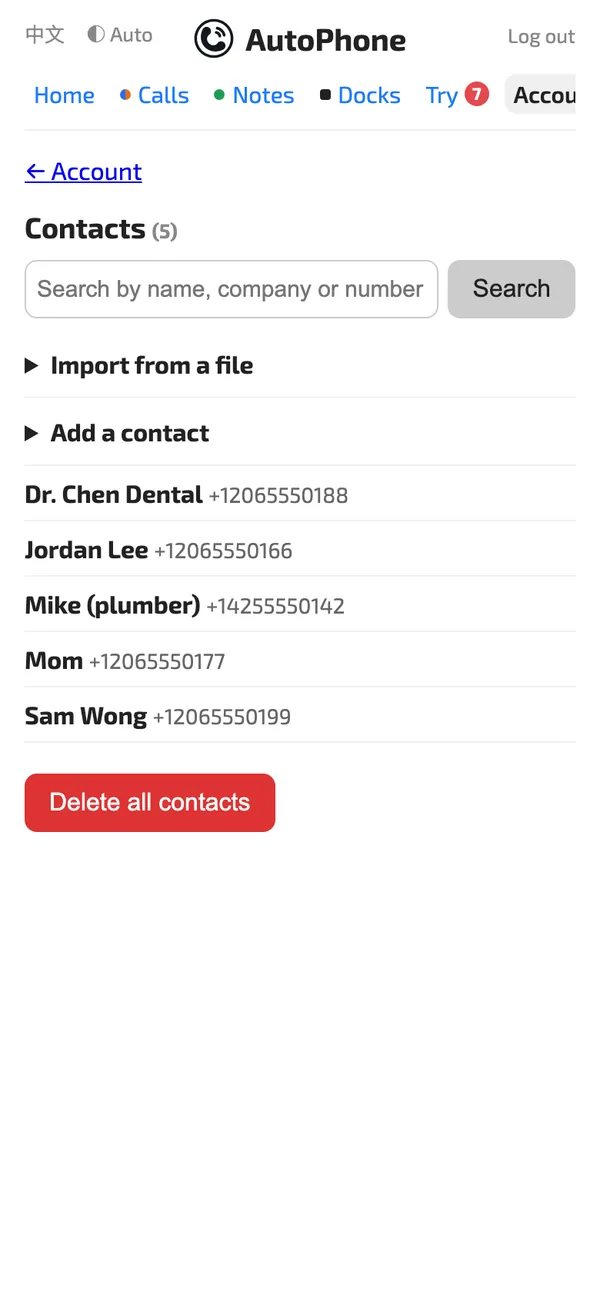
Account → Contacts → Manage contacts. Import the vCard (.vcf) or CSV file exported from your phone, Google or iCloud, or add people one by one, with a relationship and notes for the Agent (“my mother — speaks Mandarin, hard of hearing”). A number already in the book is merged into that person, not duplicated. Contacts put names on your calls, are greeted as people you know, and appear in the picker when you place a call.
10. Your account
- Where you are — your state; it sets your time zone and the rules that differ by state (for example, remembering other people's voices).
- Time zone — for the dock's clock, quiet hours and reminders.
- Contacts and Remembered voices — see above.
- E-mail notices — a summary of every call a dock handles. A new phone on a dock and an unlinked dock are always e-mailed.
- Connected AI apps — see and disconnect them.
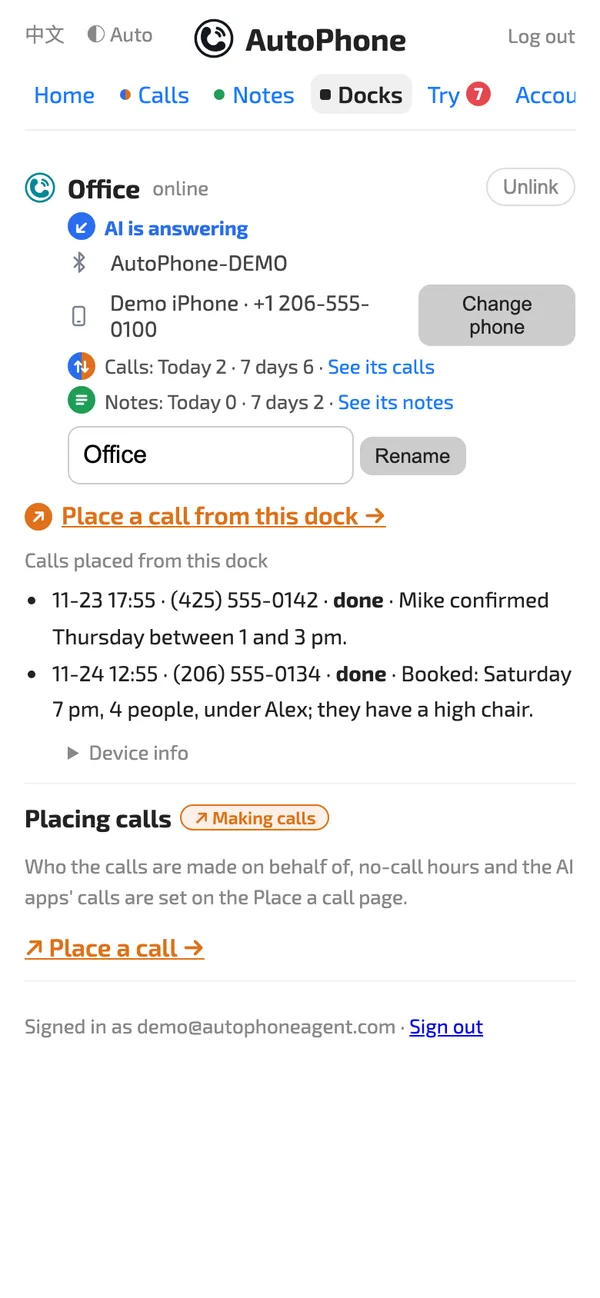
11. Docks and phones
- Several docks, one account — one at home, one at the office. Each has its own colour mark, name and identity.
- Rename a dock on the Docks page (the name shows on its screen: letters and numbers, up to 16).
- Change phone — the dock lets go of the old phone; pair the new one in its Bluetooth settings.
- One phone on several docks — only one answers at a time; I'll answer on any of them gives all your calls back to you.
- Updates arrive over the air by themselves; a new version only stays if the dock comes back healthy.
- Unlink a dock to give it to someone else; it shows a new code to link again.
12. Claude, ChatGPT and other AI apps
Connect AutoPhone to your AI assistant and ask it “Who called me today?” or “What did the plumber say about the price?”. Add a custom connector with the address https://user.autophoneagent.com/mcp and sign in (step by step). It can only read, unless you turn on Calls asked by your AI apps; then Claude can also have your Agent place a call, under the same rules as any call you place.
13. Try it
The Try tab (the number on it is the demos you have not tried yet):
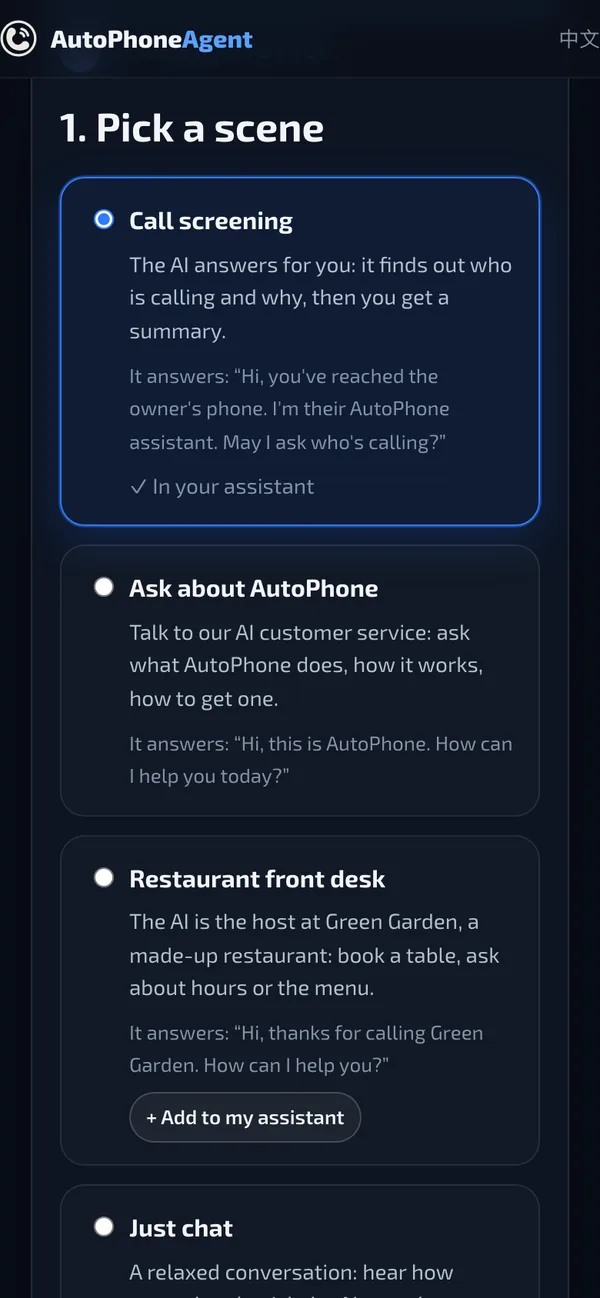
- Call our AI — pick a scene (call screening, a restaurant's front desk, our support, a chat), call the number shown from your mobile and talk to it. The page then shows the conversation and the summary you would get.
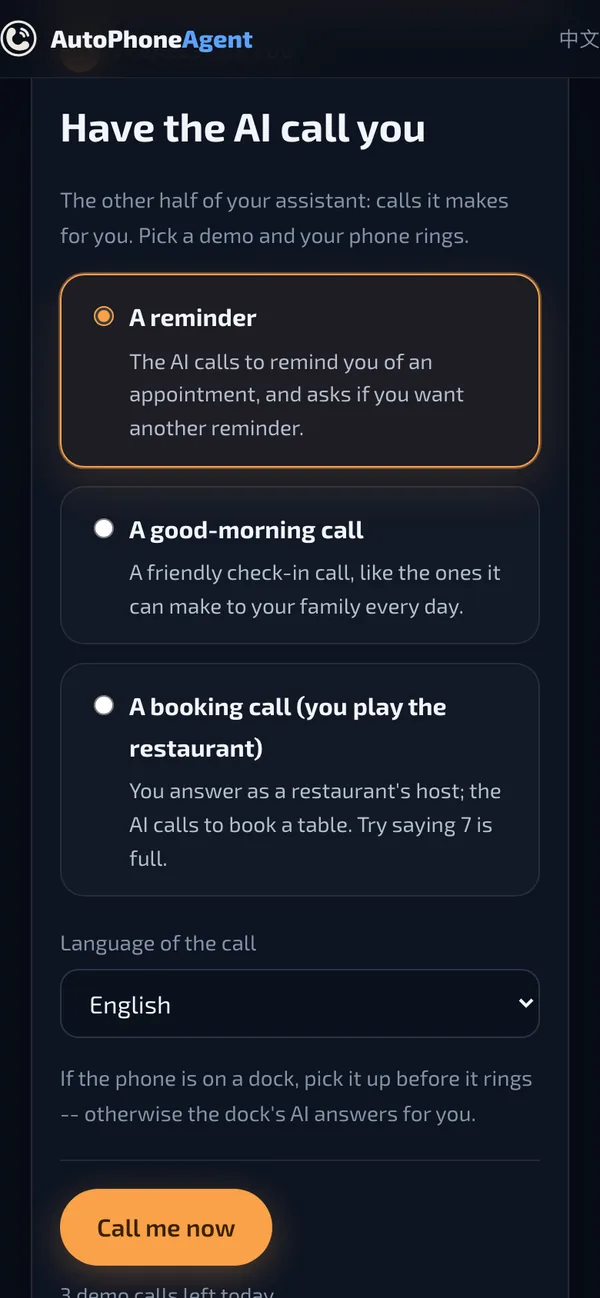
- Have the AI call you — a reminder, a good-morning call, or a booking where you play the restaurant. Your phone rings within a minute (pick it up off the dock first); afterwards the conversation shows on the page. Up to three a day.
- Add to my assistant — after trying a skill, add it in one tap.
14. Privacy and your data
- Calls the Agent handles and meeting notes are recorded and written down for you; delete any of them, or your whole account, at any time (how).
- Some places require telling people a call or meeting is recorded; follow the law where you and they are.
- We do not sell your data. More in Privacy & safety and the Privacy policy.
15. When something is not right
| What you see | What to do |
|---|---|
| The dock shows Offline | Check its power and your WiFi (2.4 GHz). It reconnects by itself; if your WiFi changed, add the new one from the dock's settings. |
| The Agent does not pick up | Is the phone on the dock and paired? Did someone tap I'll answer? Tap Let AI handle on Home. |
| A call you asked for did not go out | See its status under Calls placed: the dock must be online with the AI holding the phone, and quiet hours and daily limits apply. |
| No Listen & note button | Notes need a dock with a microphone, and the AI holding the phone. |
| A note has the wrong speakers | Tap a person in the people bar: rename, or Same person as to join two. |
| A word keeps coming out wrong | Edit it once and accept the offer to fix the same mistake; add it to My vocabulary. |
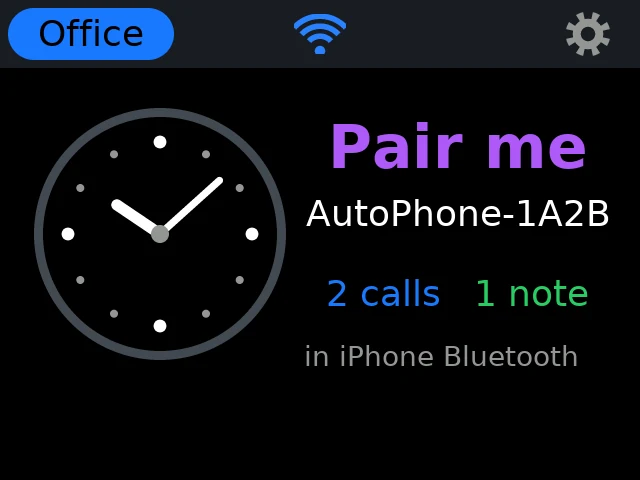
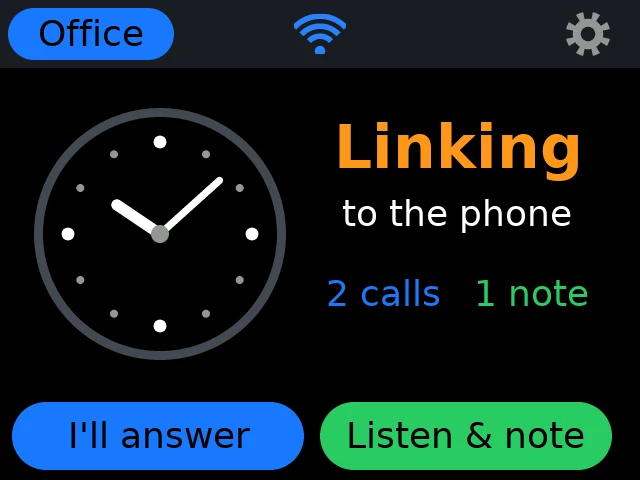
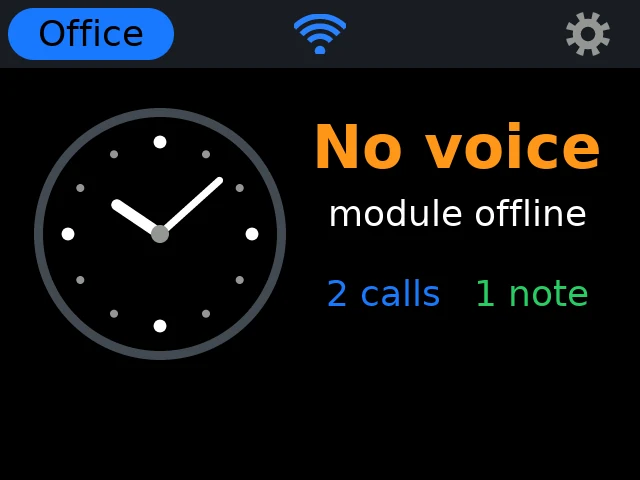
What the dock's screen may say
Still stuck? Write to [email protected] with the time and the dock's name.